
Steps
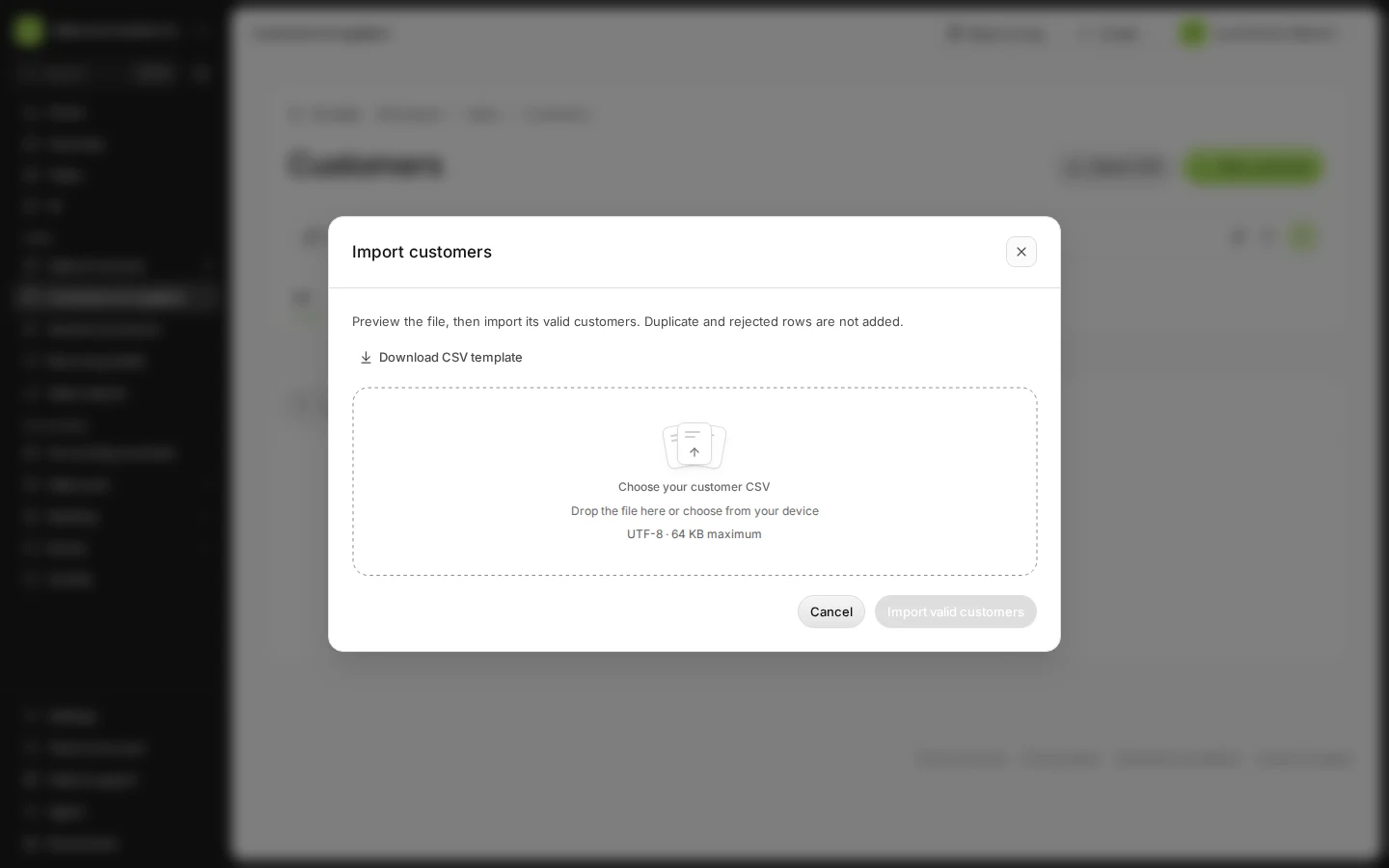
Open Customers & suppliers and press Import CSV.
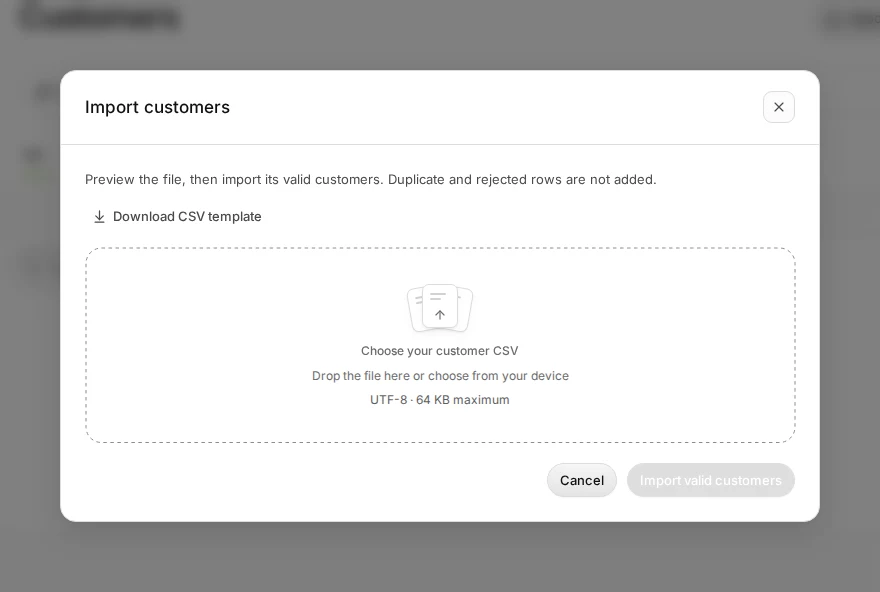
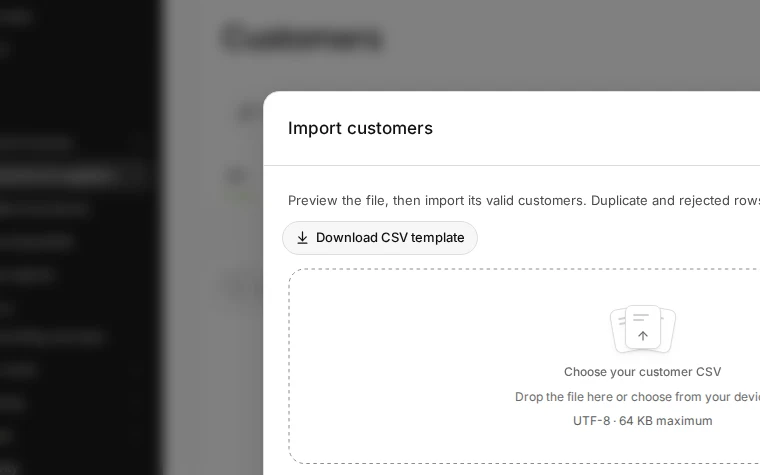
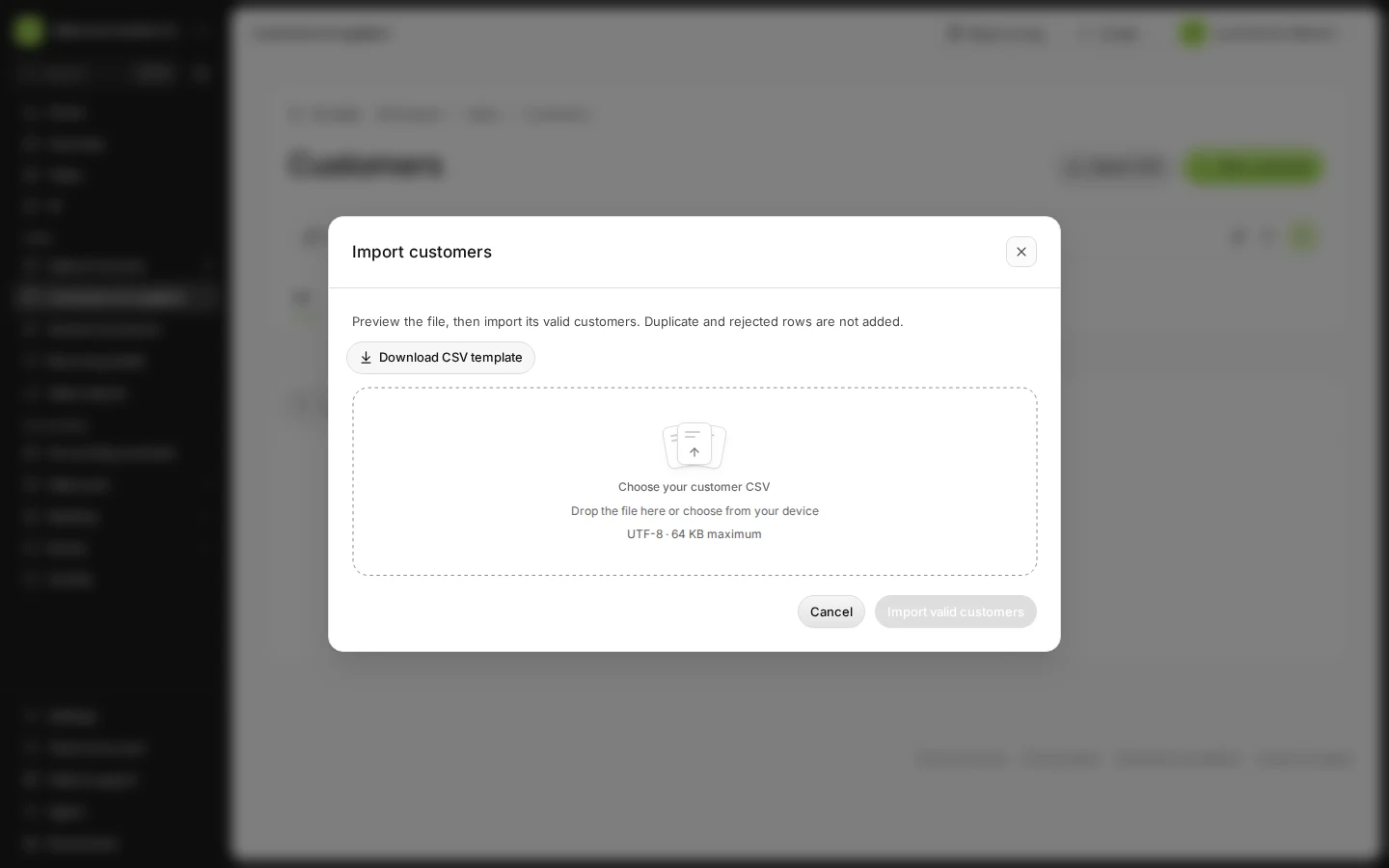
Step 1 in Deline (Spain business, fictional data) · See the whole screen Press Download CSV template and fill in one customer per row.
Each customer needs a name, an address and a country.
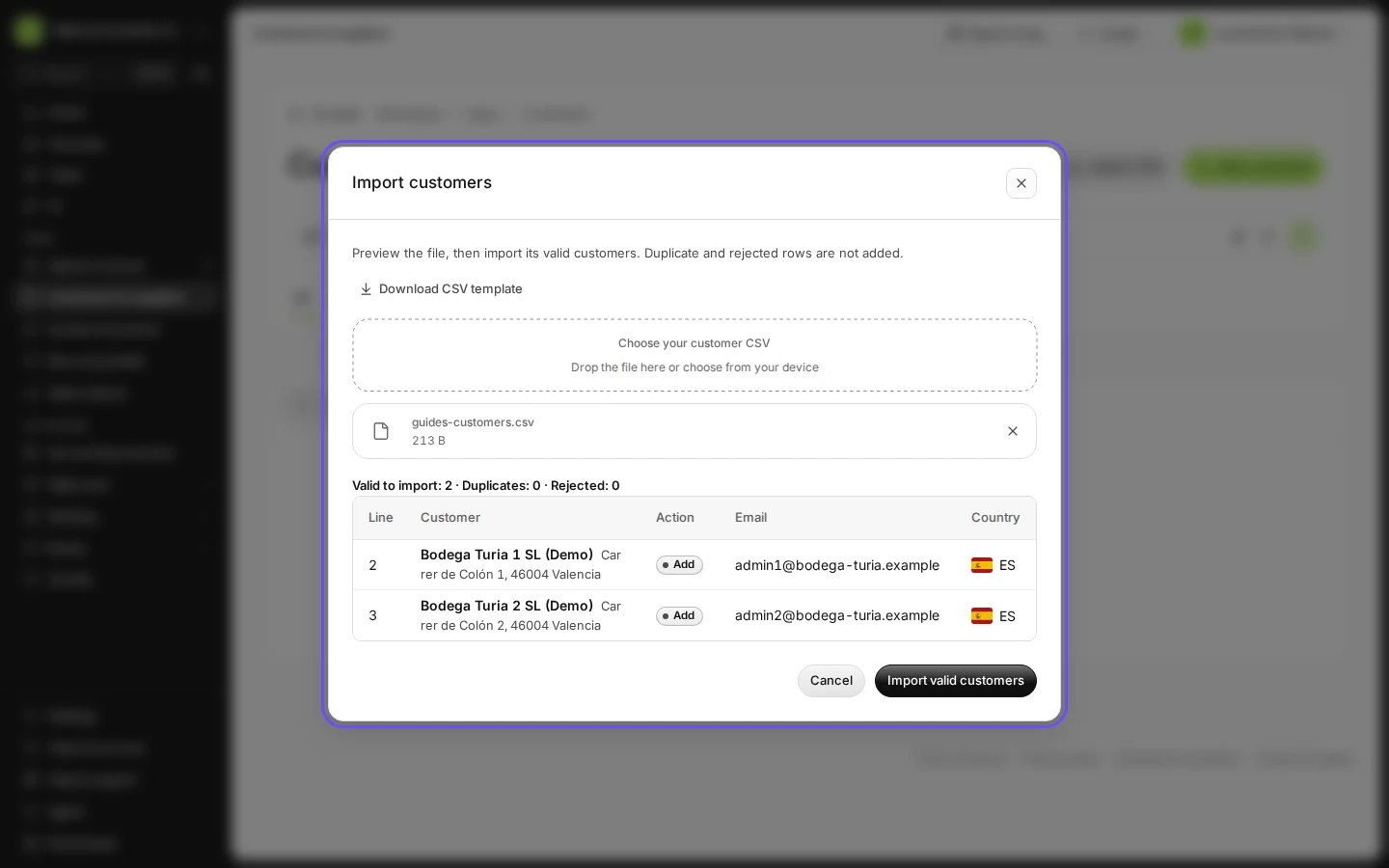
Step 2 in Deline (Spain business, fictional data) · See the whole screen Press Choose your customer CSV and pick the file.
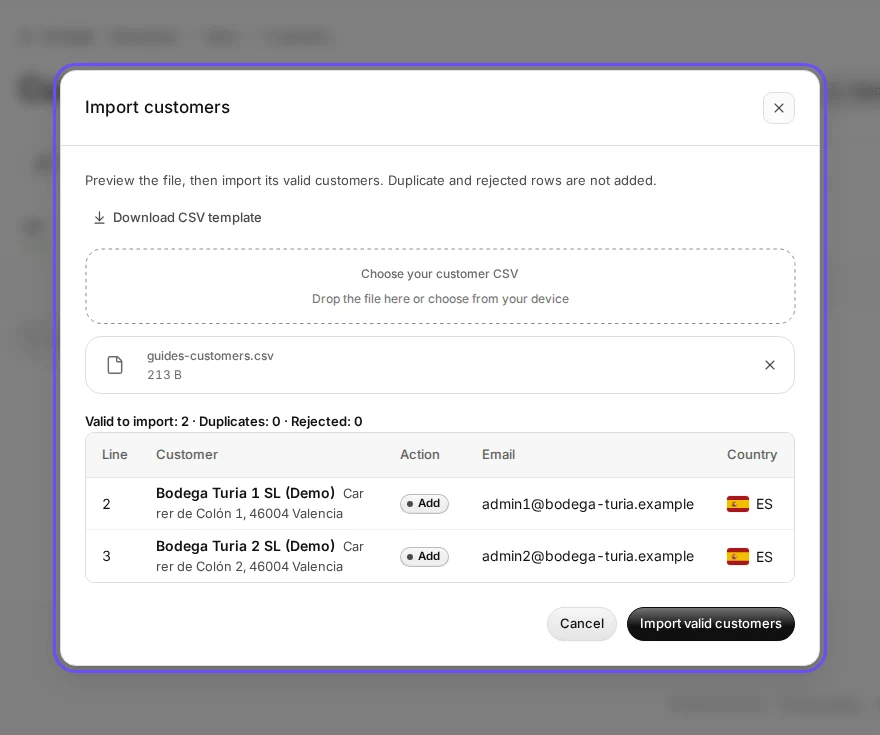
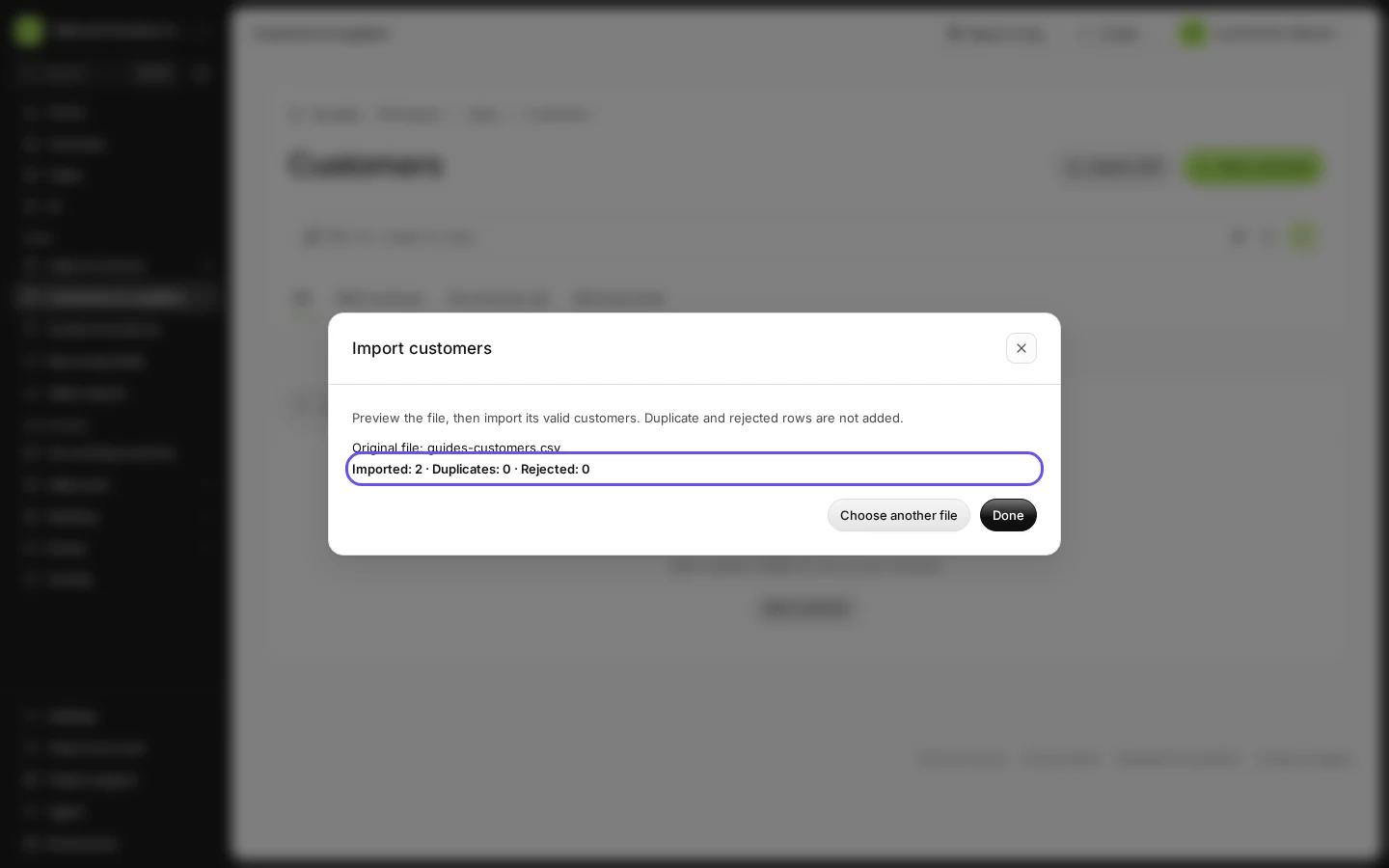
Step 3 in Deline (Spain business, fictional data) · See the whole screen Check the preview and press Import valid customers.
Rows to correct lists what is wrong with each rejected row.
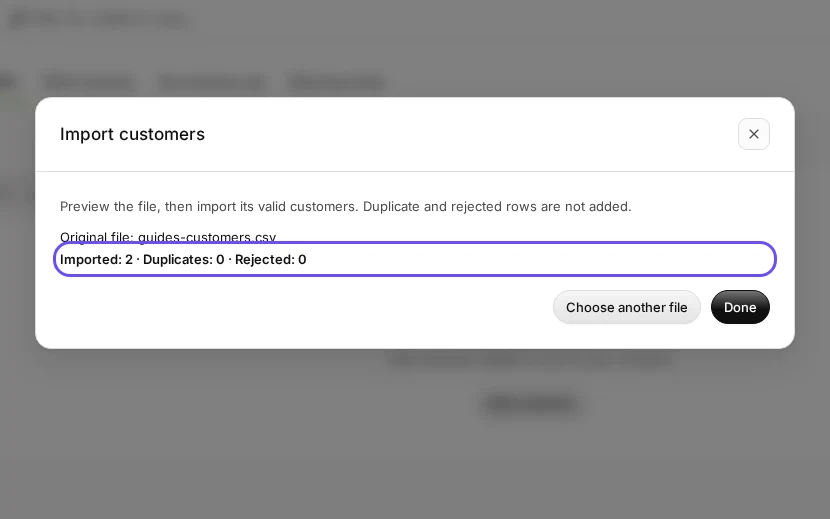
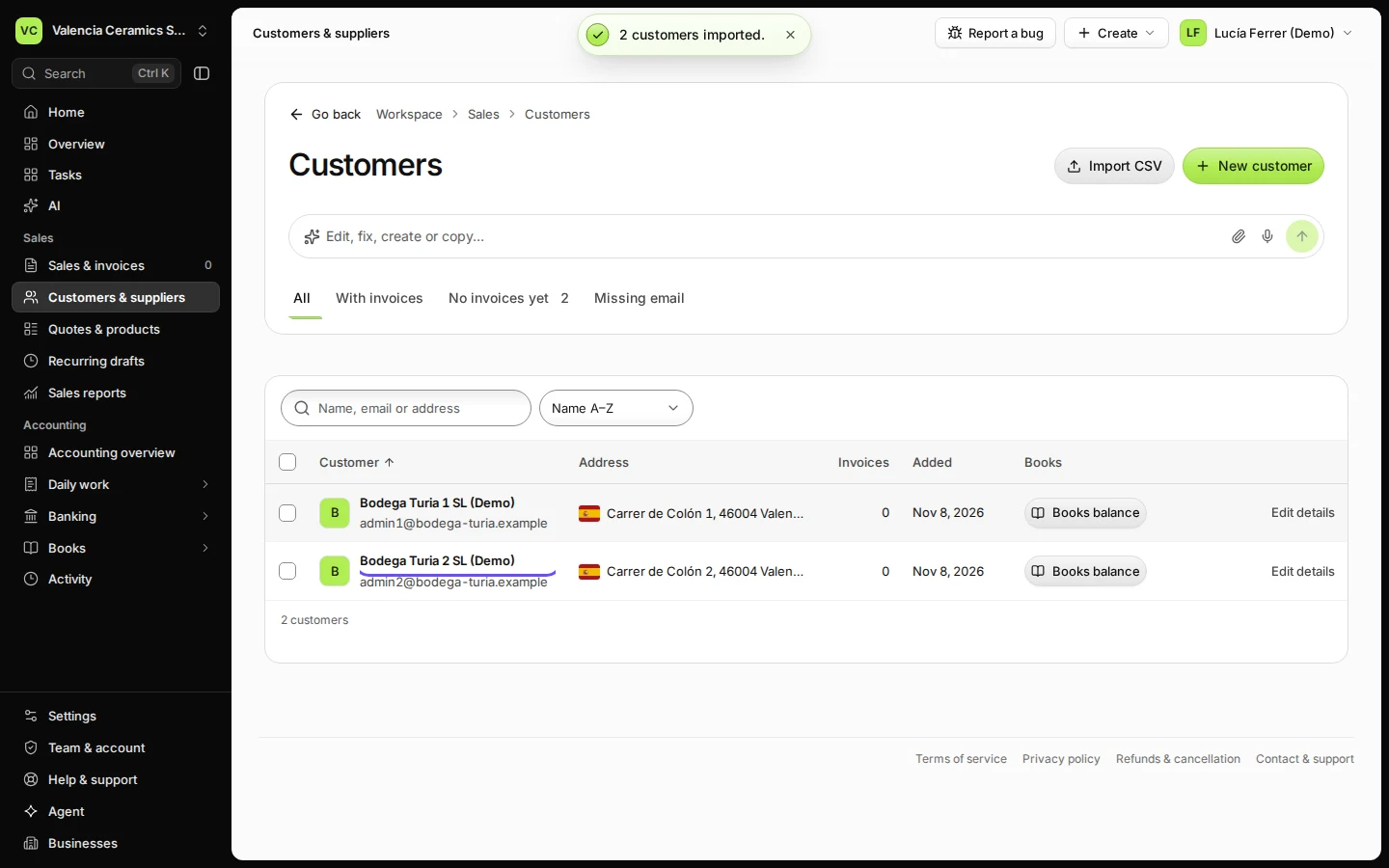
Step 4 in Deline (Spain business, fictional data) · See the whole screen Press Done.
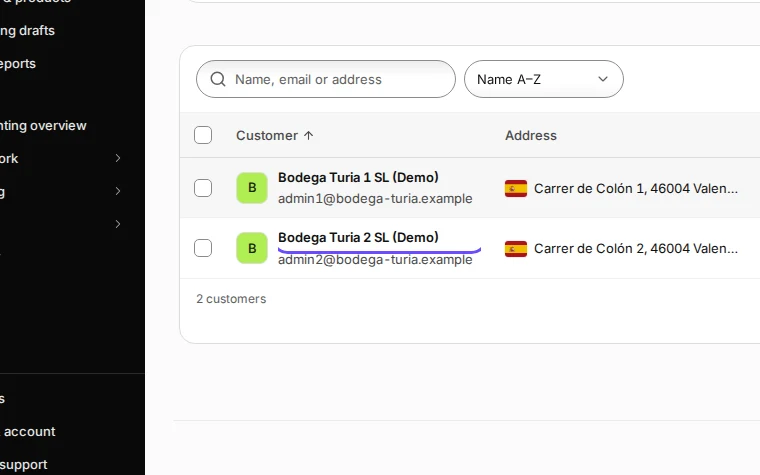
Step 5 in Deline (Spain business, fictional data) · See the whole screen
If something goes wrong
- "Name, address and country are required": fill in those columns for that row and choose the file again.
Last checked 2026-11-08 by the guide runner on build 37b370dcd (Deline 5e00493c3) (local Deline stack).