
Before you start
- You are the owner or an editor of the business.
- Have the customer's legal name, billing address and, for a business, their tax number at hand.
Steps
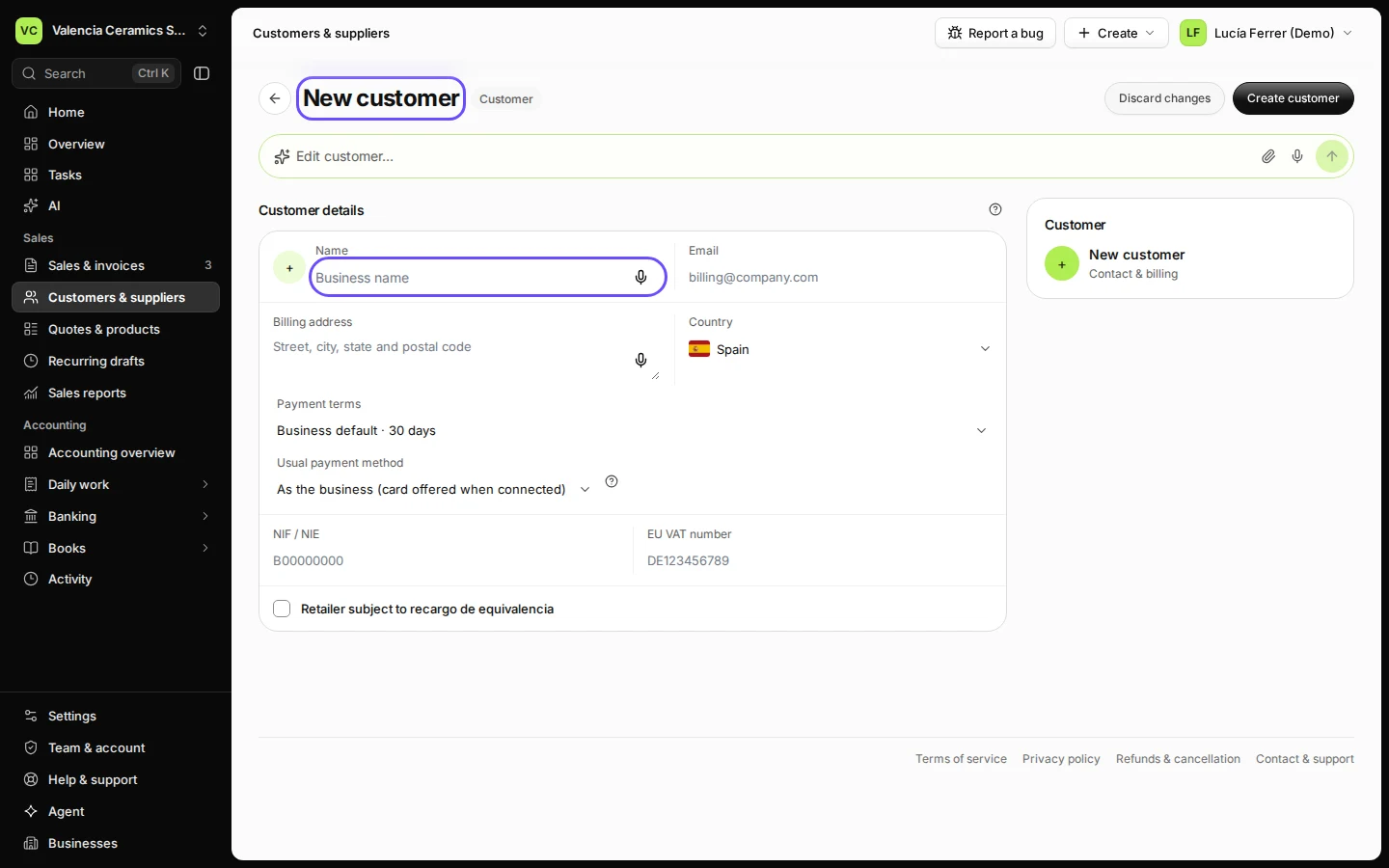
Open Customers & suppliers and press New customer.
You can also add a customer straight from the invoice editor with the + next to Bill to.
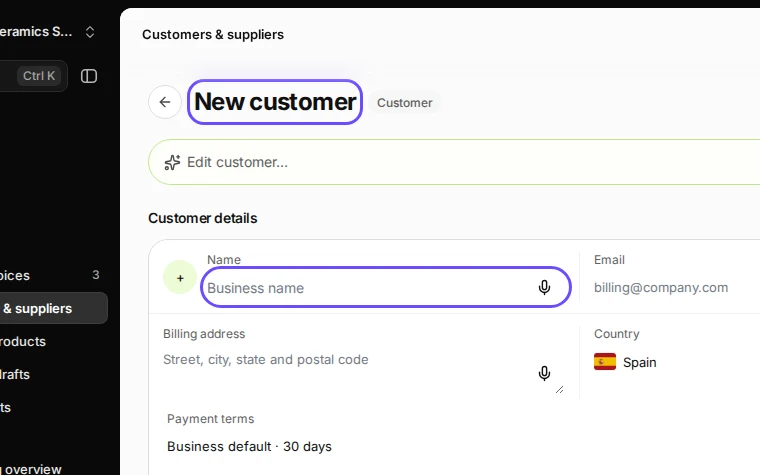
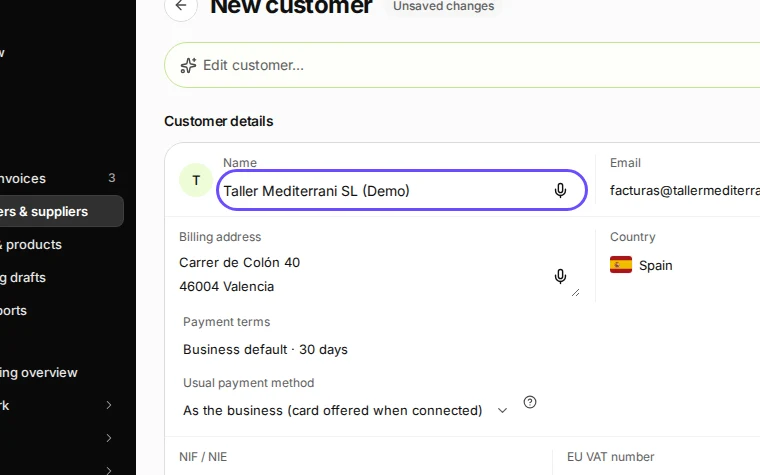
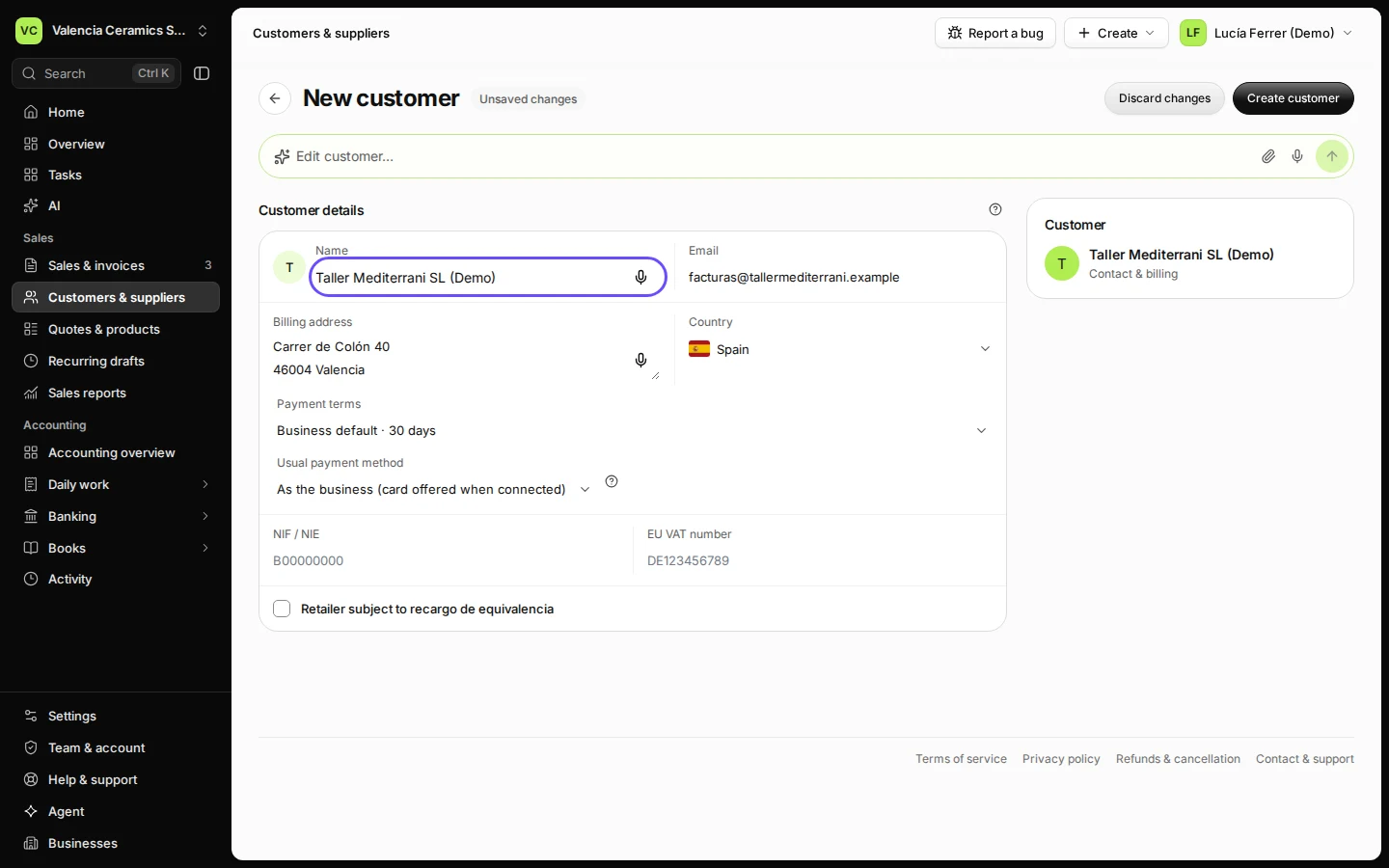
Step 1 in Deline (Spain business, fictional data) · See the whole screen Enter the name, email and billing address.
Use the legal name as it should appear on invoices. Invoices and reminders go to this email.
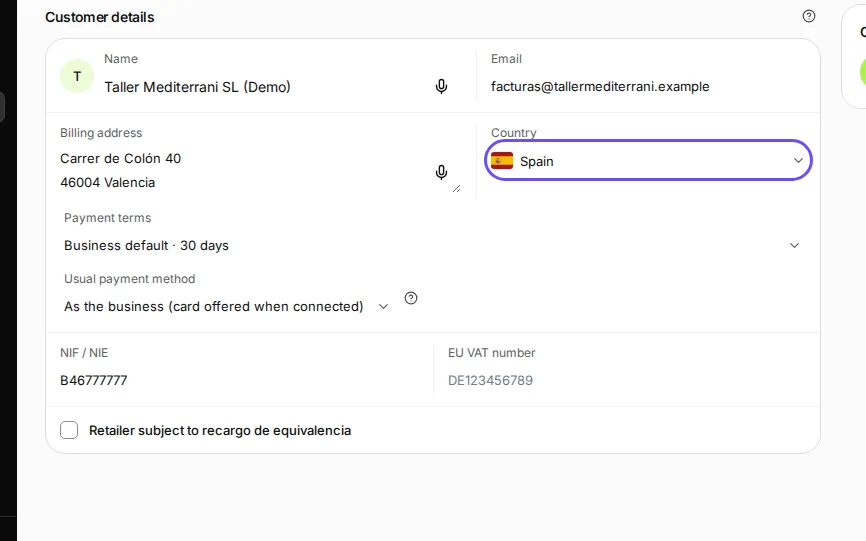
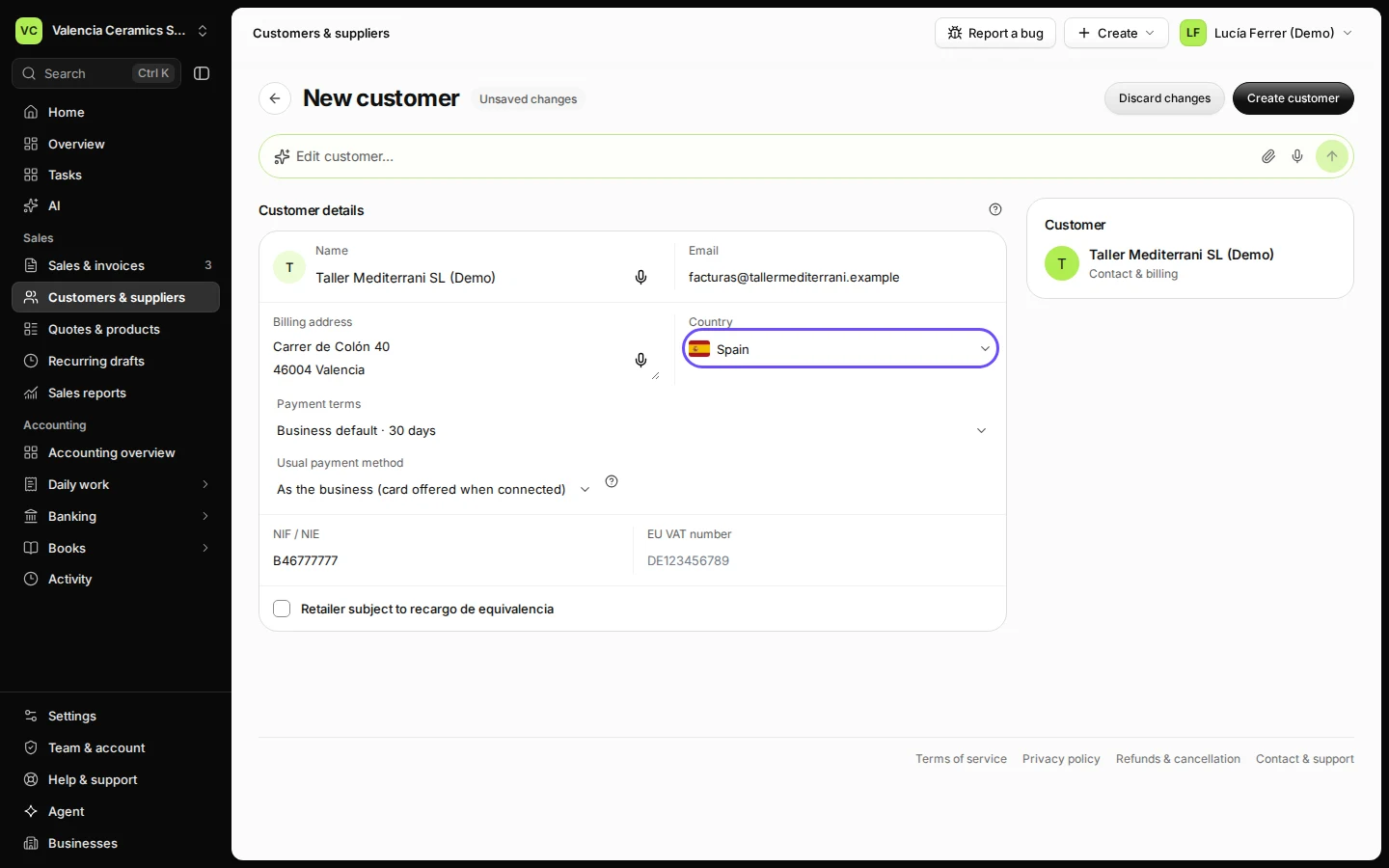
Step 2 in Deline (Spain business, fictional data) · See the whole screen Choose the country and add their tax number.
In Spain, enter the NIF or NIE. For a business in another EU country, the EU VAT number field appears.
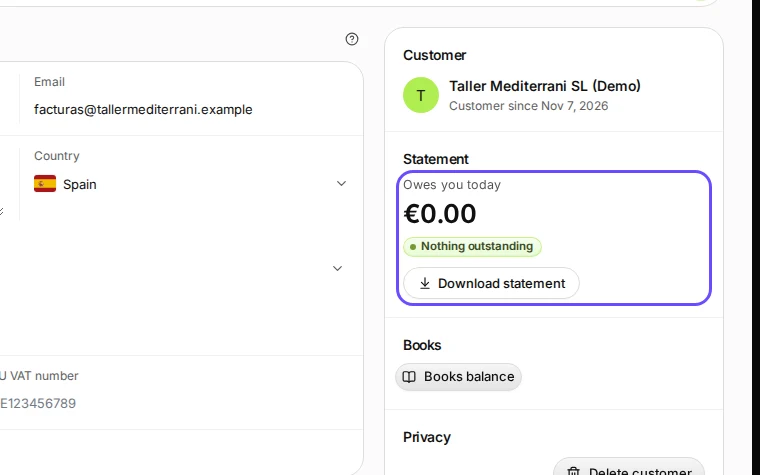
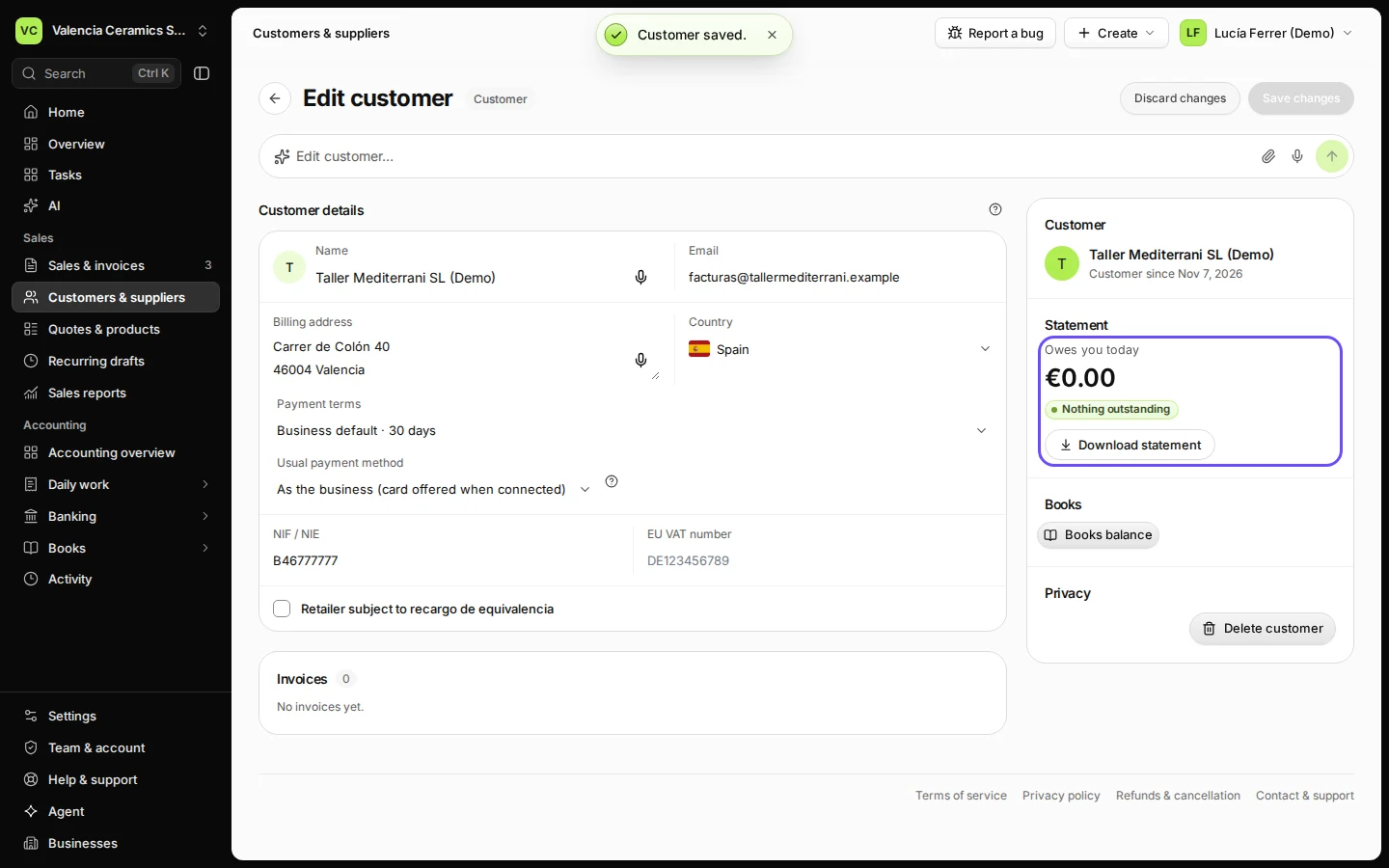
Step 3 in Deline (Spain business, fictional data) · See the whole screen Press Create customer.
The customer page opens with their statement: what they owe you today and every invoice you send them.
Step 4 in Deline (Spain business, fictional data) · See the whole screen


If something goes wrong
- "You already have a customer that looks the same": Deline saved it but warns you about a possible duplicate. Open Customers & suppliers and check before invoicing.
- The tax number is refused: check the format, including the country letters for an EU VAT number (for example DE123456789).
Last checked 2026-11-07 by the guide runner on build c5fbd2fa6 (Deline 12a482996) (local Deline stack, desktop and phone).