
Before you start
- Your books are set up.
- You have the receipt as a PDF or a photo (PDF, PNG or JPEG).
Steps
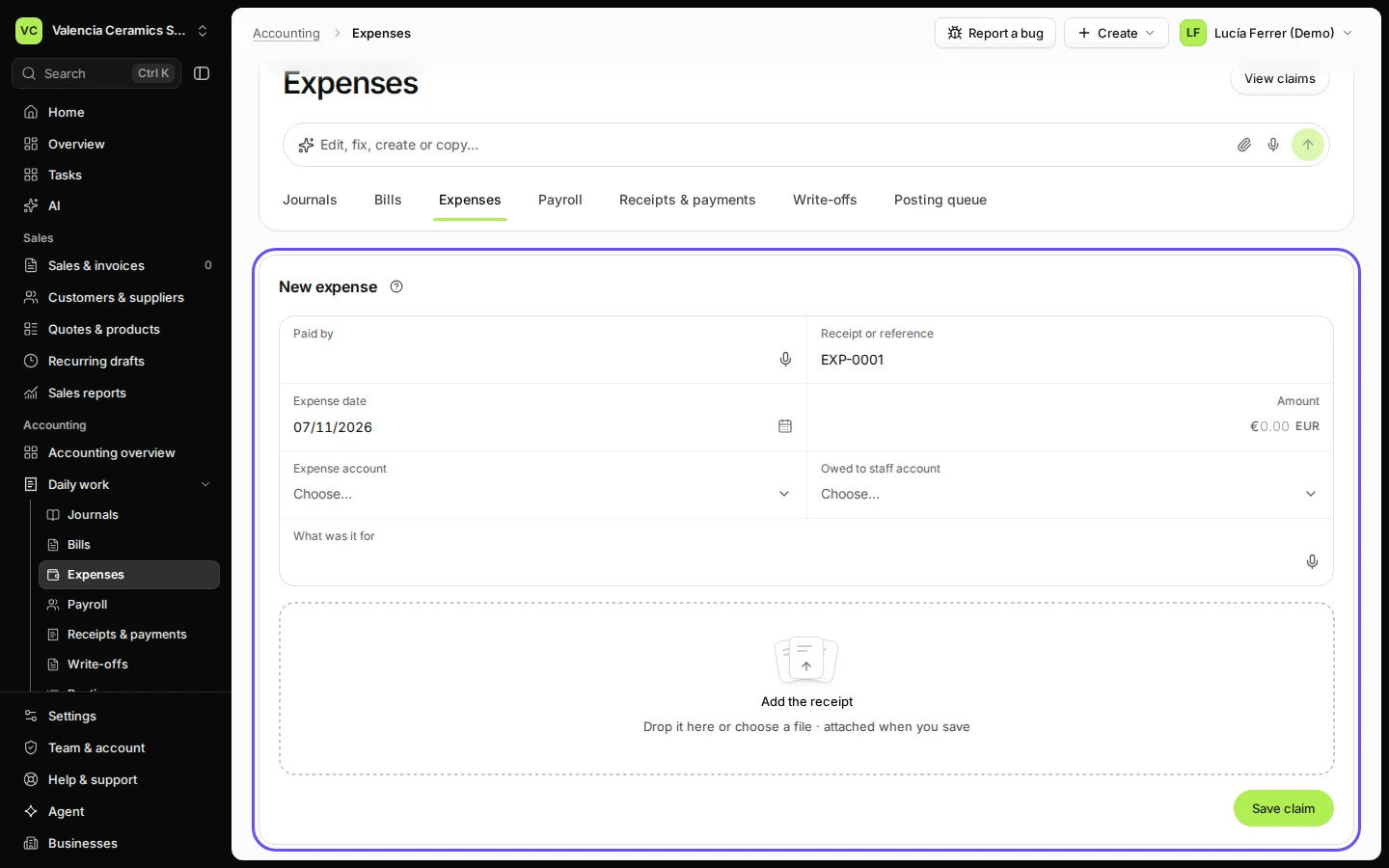
Open Expenses from Daily work and press New expense.
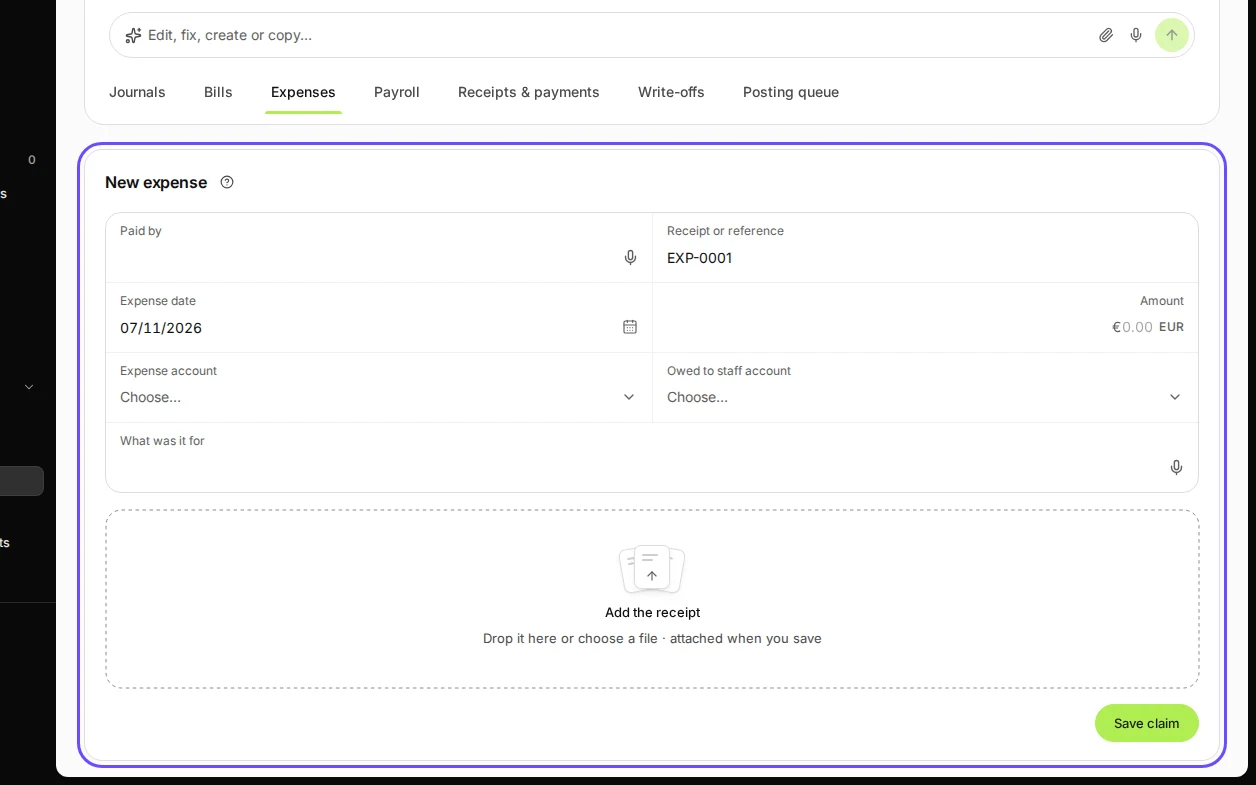
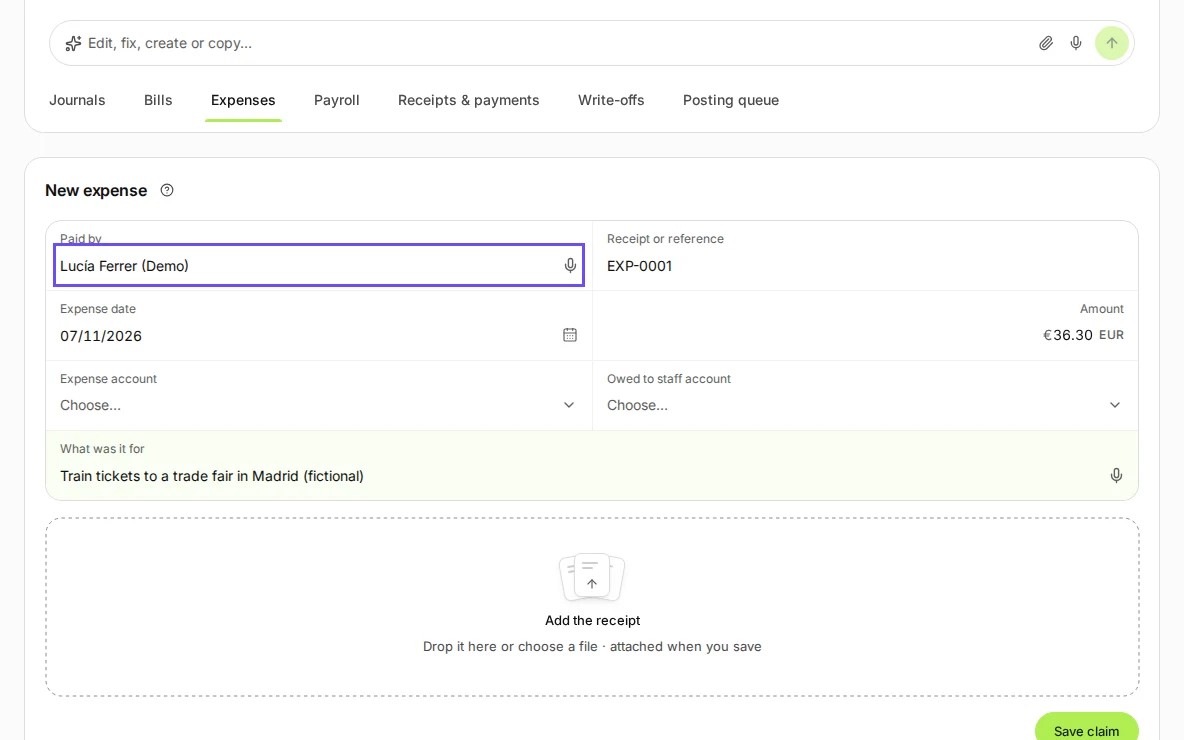
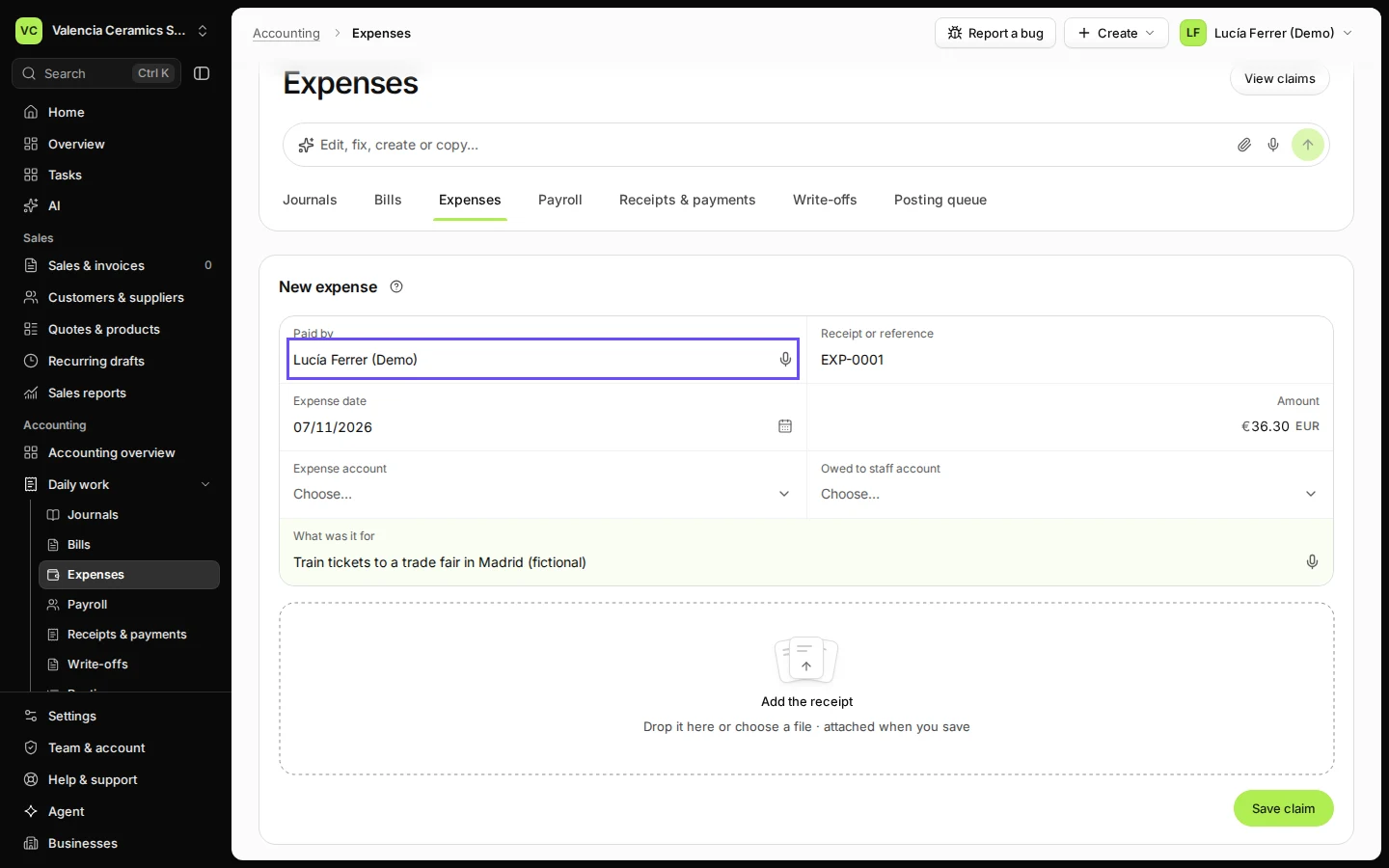
Step 1 in Deline (Spain business, fictional data) · See the whole screen Enter who paid, the amount and what it was for.
Keep the date of the receipt. Receipt or reference is filled in with the next number; you can type the receipt's own number instead.
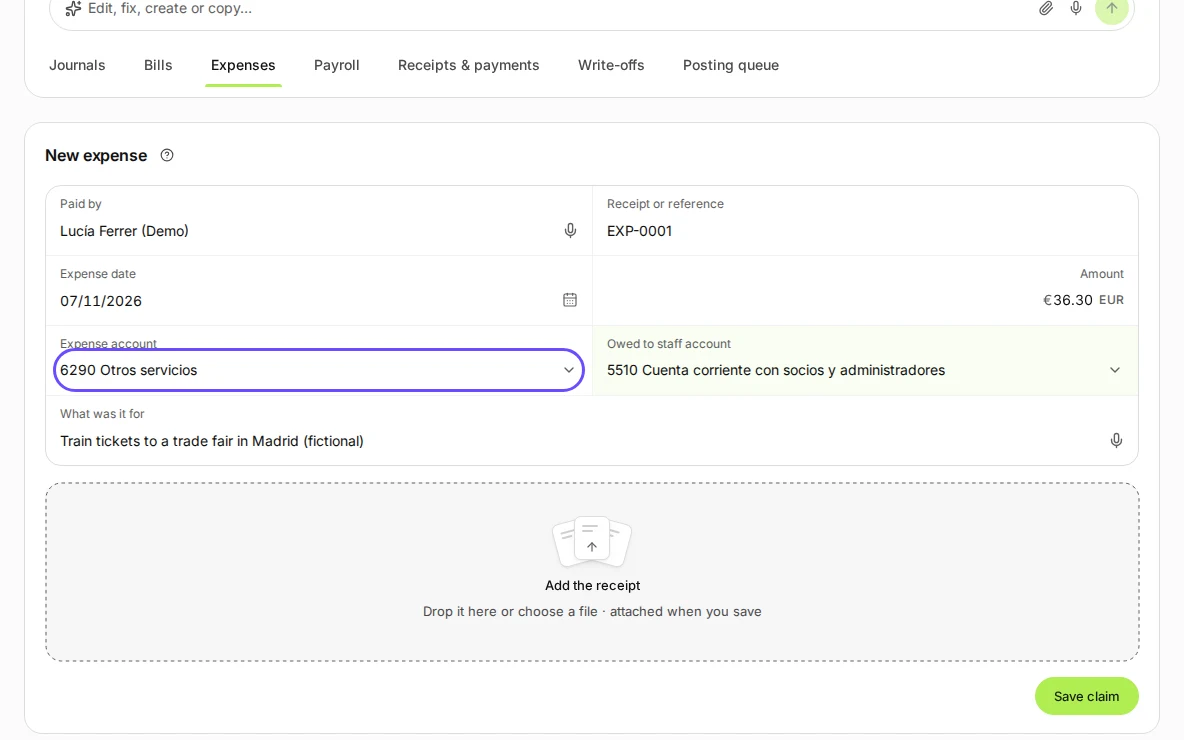
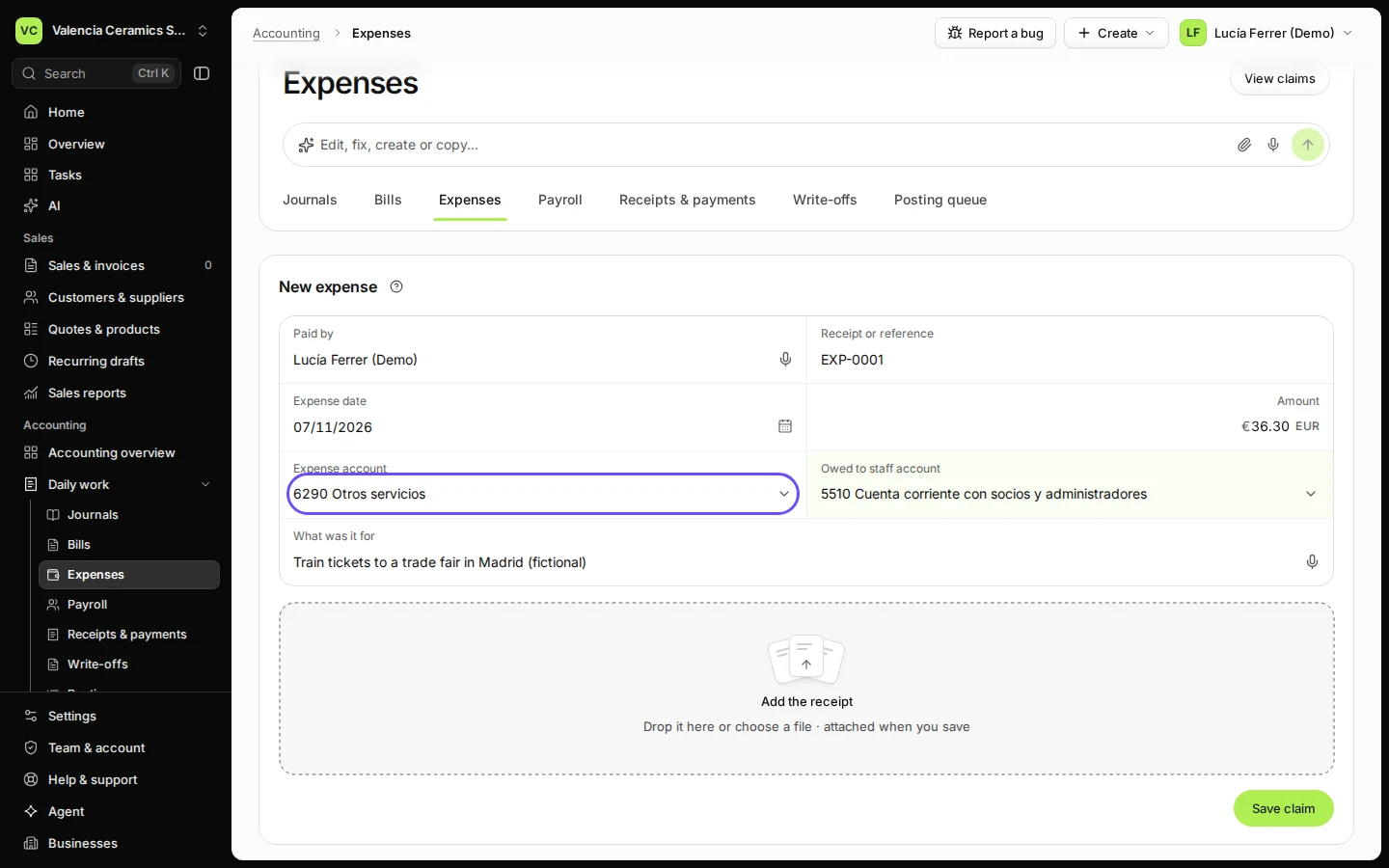
Step 2 in Deline (Spain business, fictional data) · See the whole screen Choose the expense account and the account that shows what the business owes the person.
For a director or partner in Spain this is usually 5510 Cuenta corriente con socios y administradores.
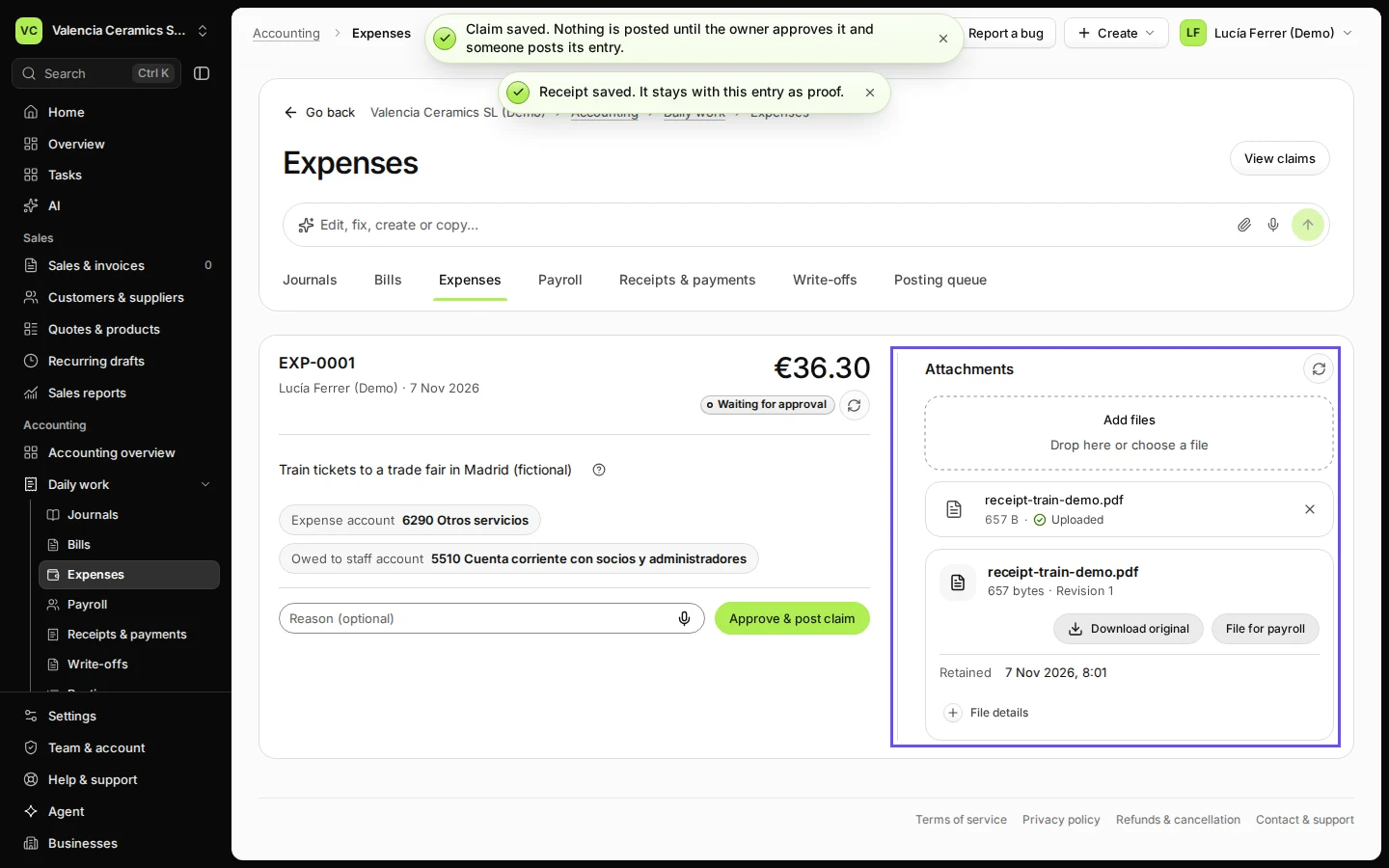
Step 3 in Deline (Spain business, fictional data) · See the whole screen Add the receipt and press Save claim.
Drop the file on Add the receipt or choose it. It is attached when the claim is saved and kept unchanged.
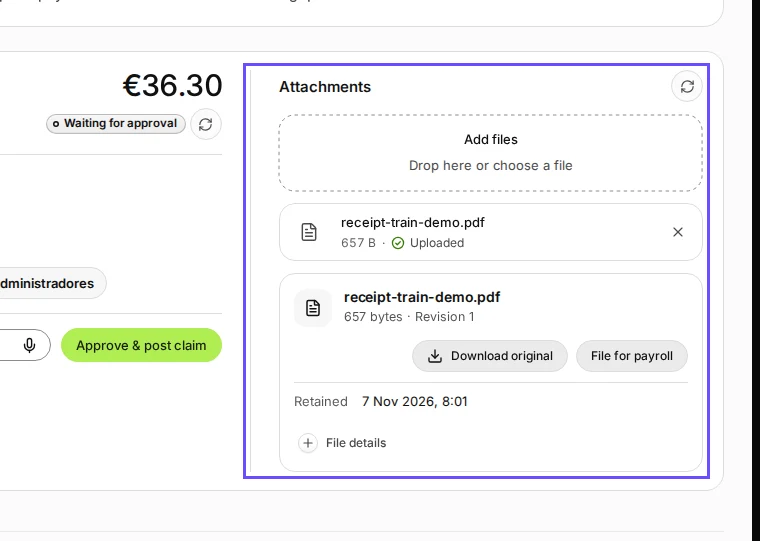
Step 4 in Deline (Spain business, fictional data) · See the whole screen Check the claim and press Approve & post claim.
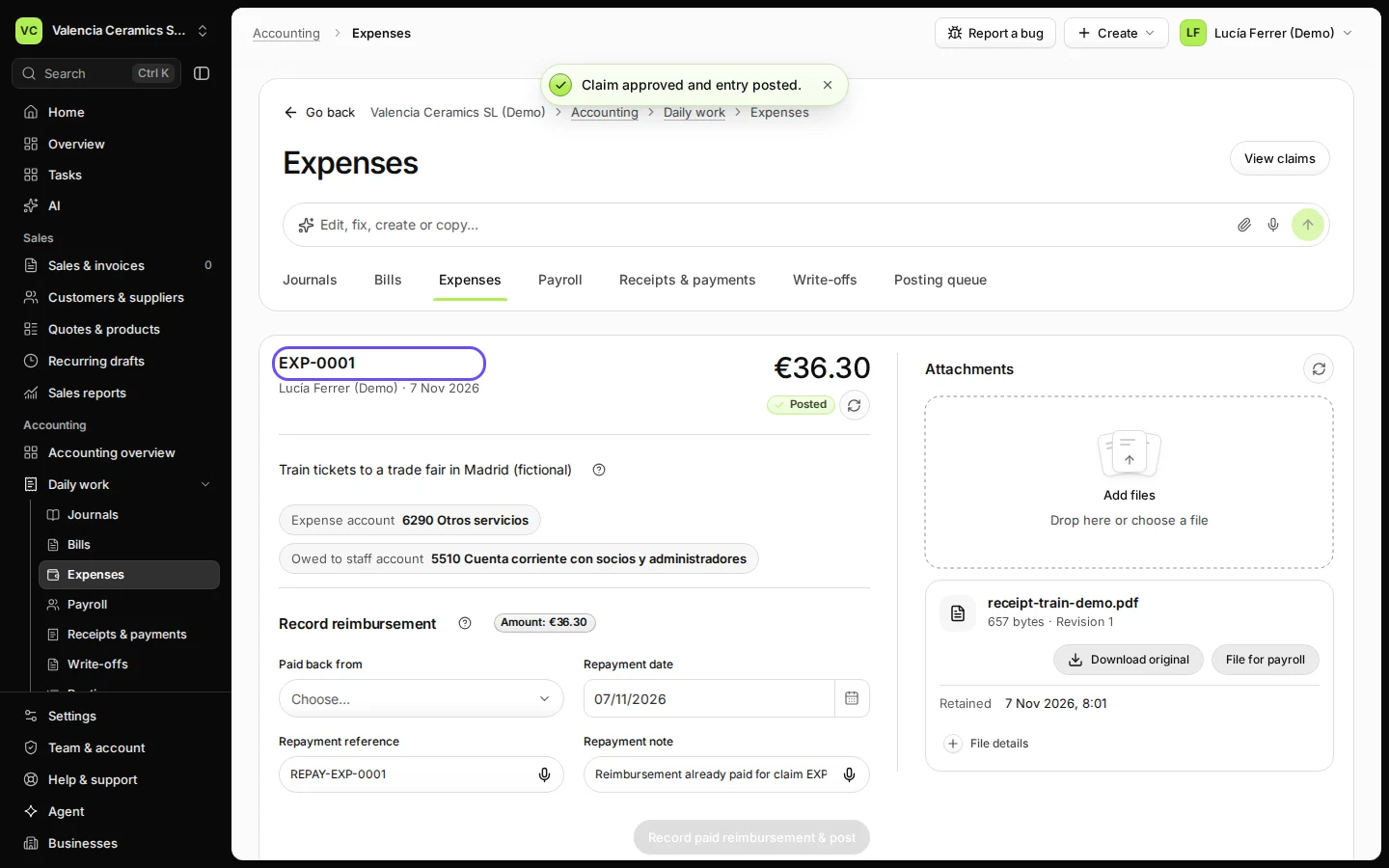
A window shows the amount, who paid and the two accounts; press Approve & post claim there to post it, or Keep as draft. When you pay the person back, record the repayment on the same claim.
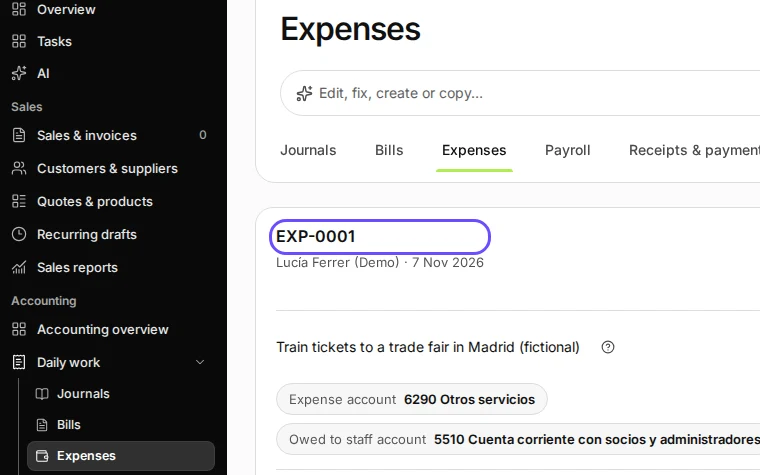
Step 5 in Deline (Spain business, fictional data) · See the whole screen


If something goes wrong
- The receipt was refused: every file is checked for viruses first; a file that fails the check is not saved. Ask for a fresh copy.
- The wrong account: before approval, the claim can still be corrected; after posting, ask your accountant for a correcting journal.
Last checked 2026-11-07 by the guide runner on build c5fbd2fa6 (Deline 12a482996) (local Deline stack, desktop and phone).