
The screenshots show a Spanish company. The steps are the same in every country; only the tax names change (IVA, VAT, ПДВ or sales tax).
Before you start
- Your business details are saved in Settings → Business. In Spain an S.L. also needs its NIF and Registro Mercantil details; the editor tells you if anything is missing.
- You are the owner or an editor of the business.
Steps
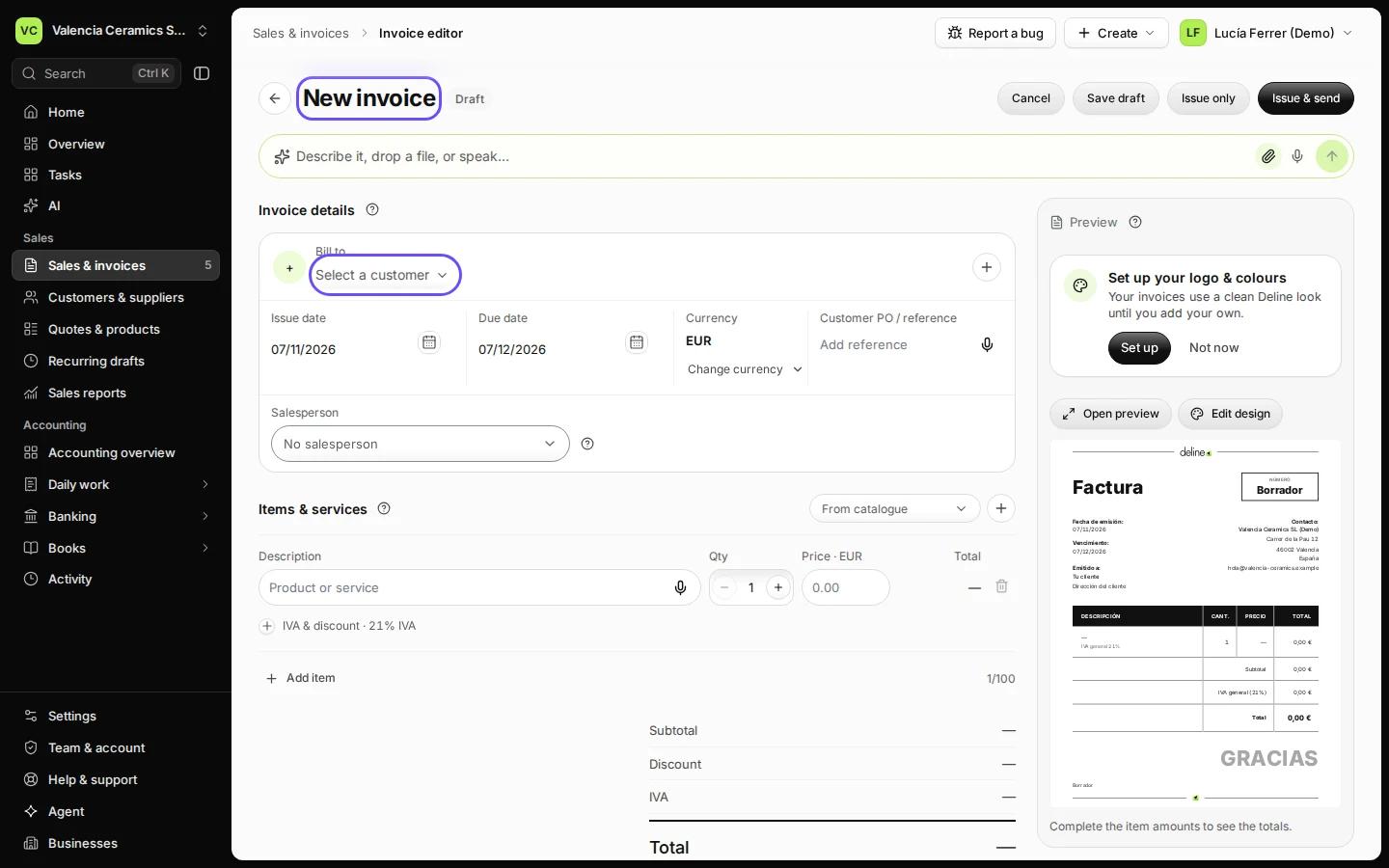
Open Sales & invoices and press New invoice.
The editor opens with today's date and your usual payment terms. The preview on the right shows the invoice as your customer will see it.
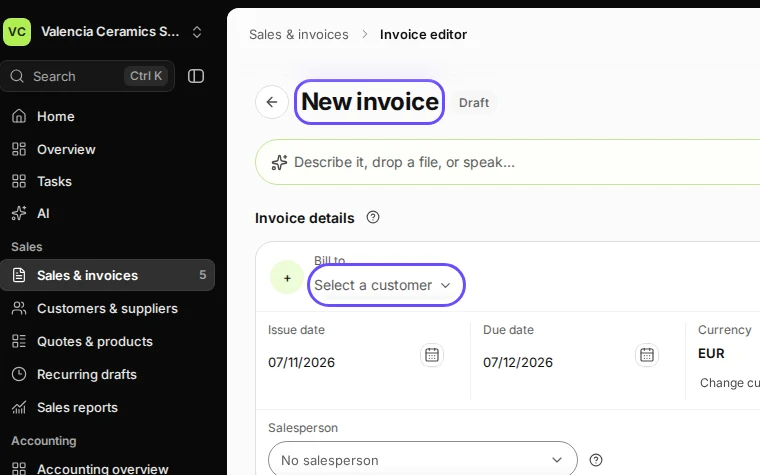
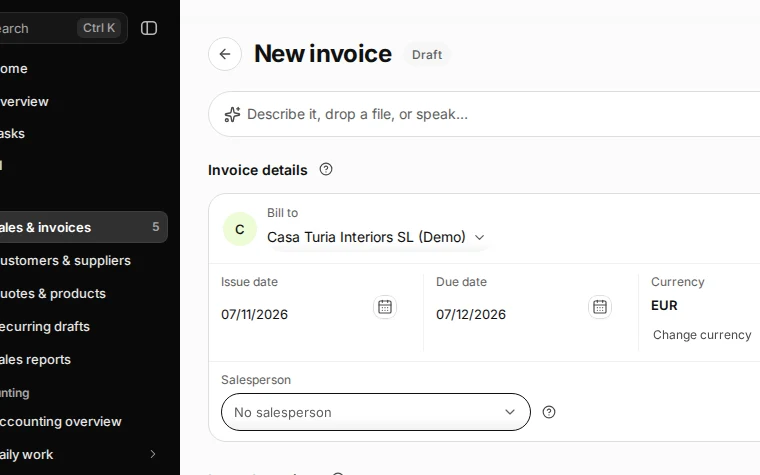
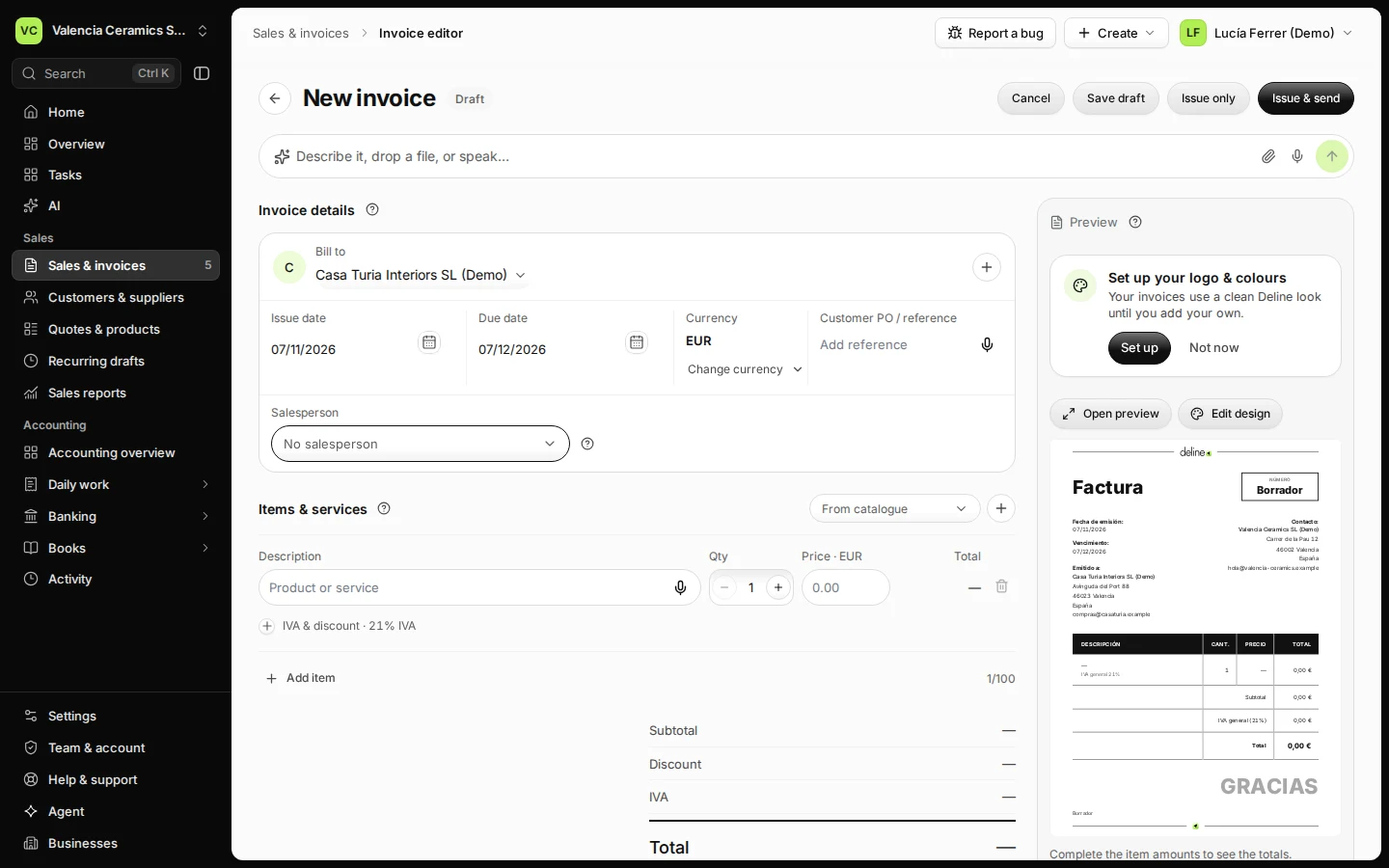
Step 1 in Deline (Spain business, fictional data) · See the whole screen Choose the customer in Bill to.
Start typing their name. Someone new? Press + next to the field and add their name, email, address and tax number.
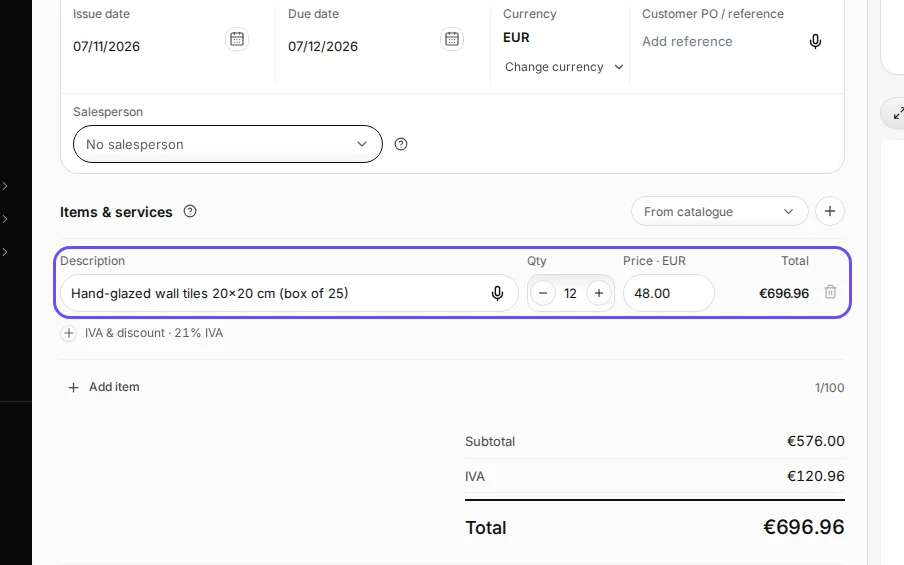
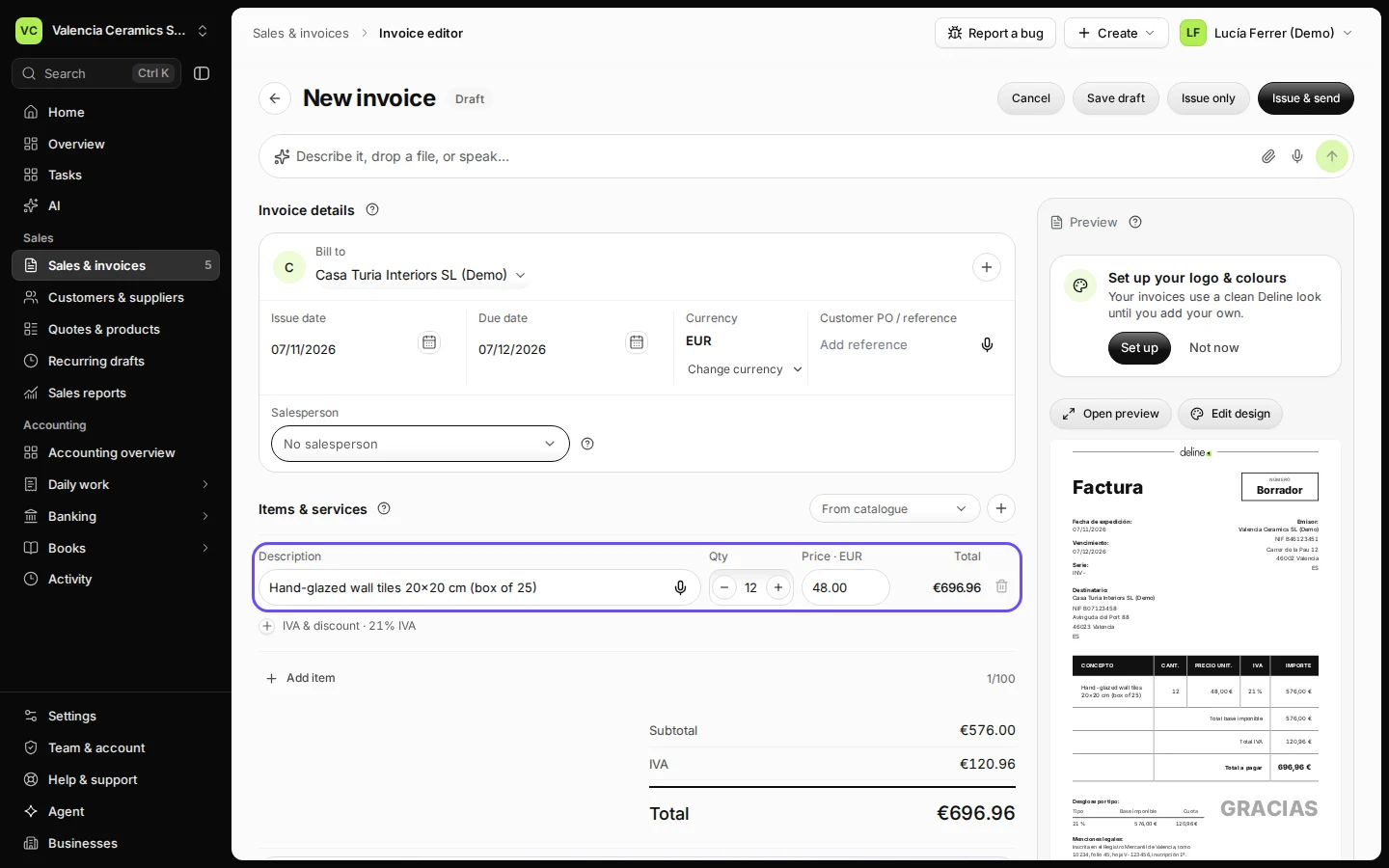
Step 2 in Deline (Spain business, fictional data) · See the whole screen Add what you sold: description, quantity and price.
The tax rate comes from your country (21 % IVA in Spain). Change it under IVA & discount on the line. Press Add item for more lines.
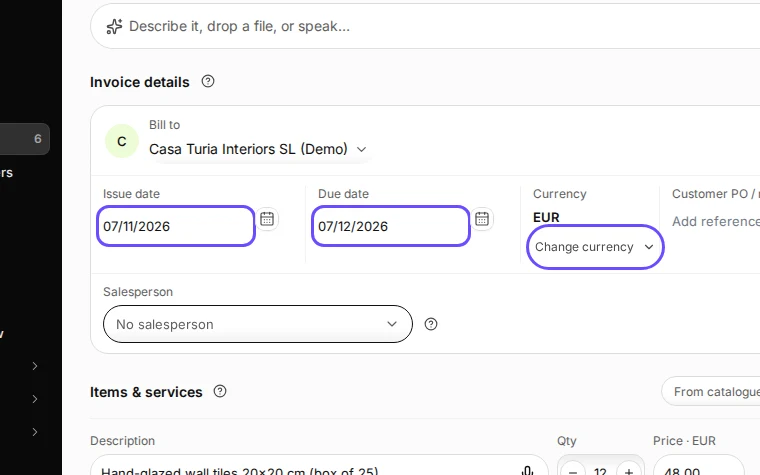
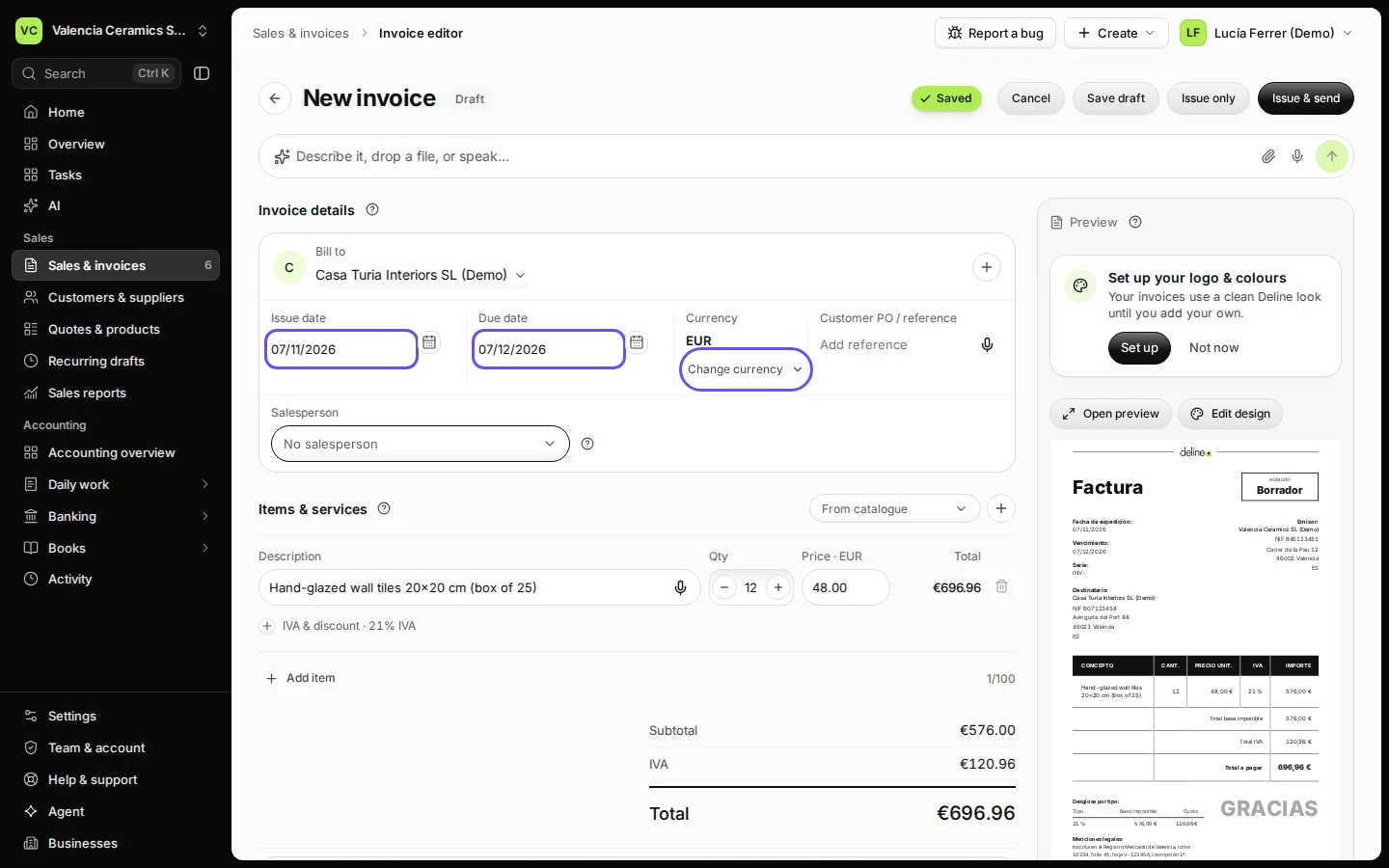
Step 3 in Deline (Spain business, fictional data) · See the whole screen Check the issue date, due date and currency.
The due date follows your payment terms. Change the currency only if you agreed another one with the customer.
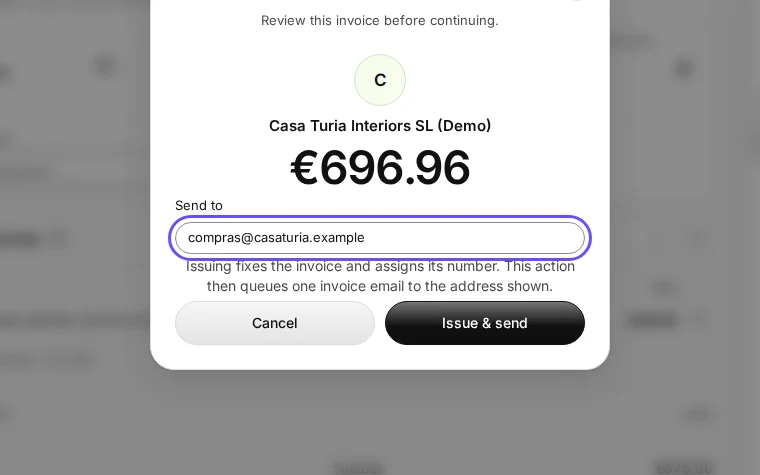
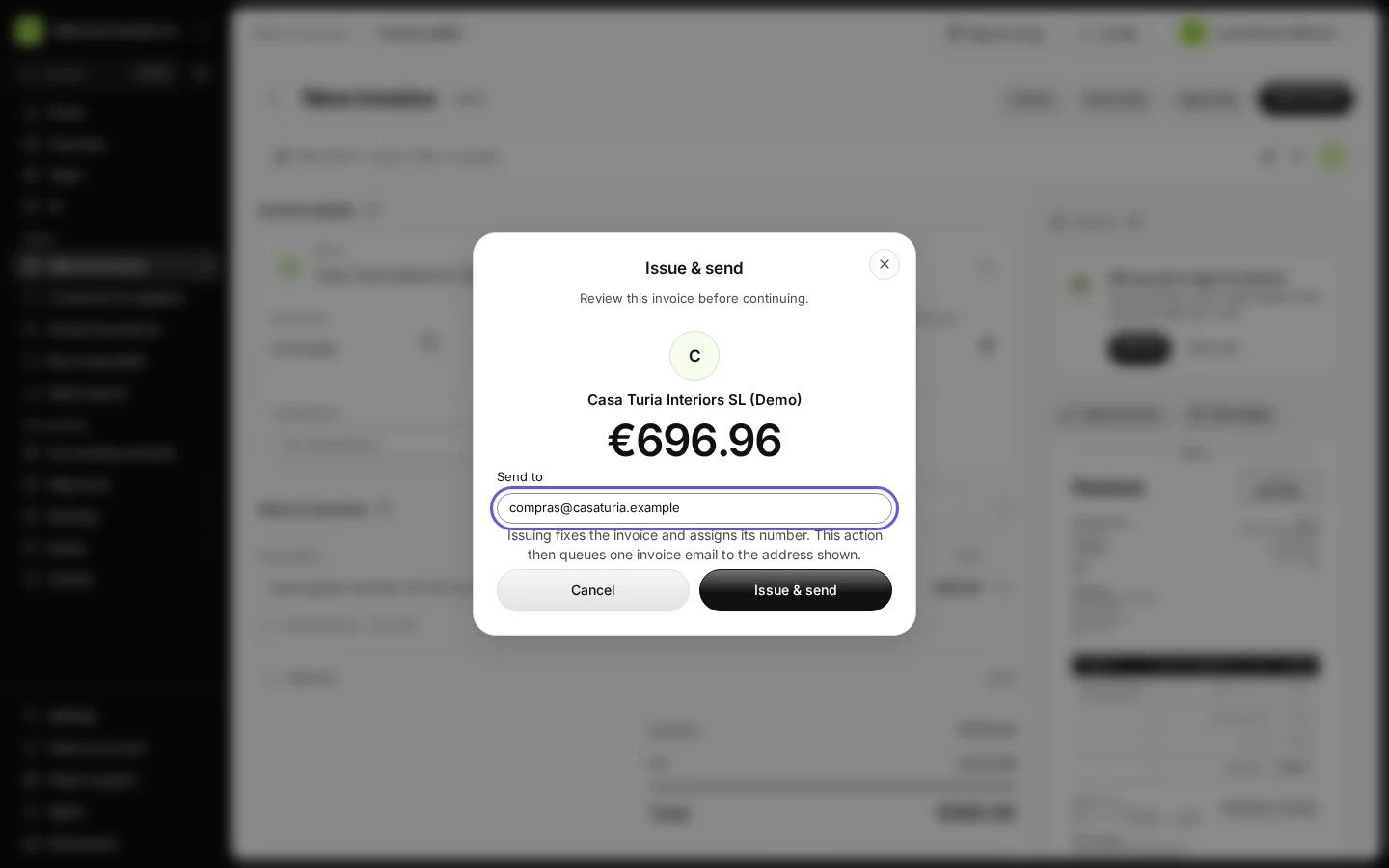
Step 4 in Deline (Spain business, fictional data) · See the whole screen Press Issue & send, check the email address, and confirm.
Issuing gives the invoice its number and fixes its content. Deline then emails it with a PDF and a link your customer can open.
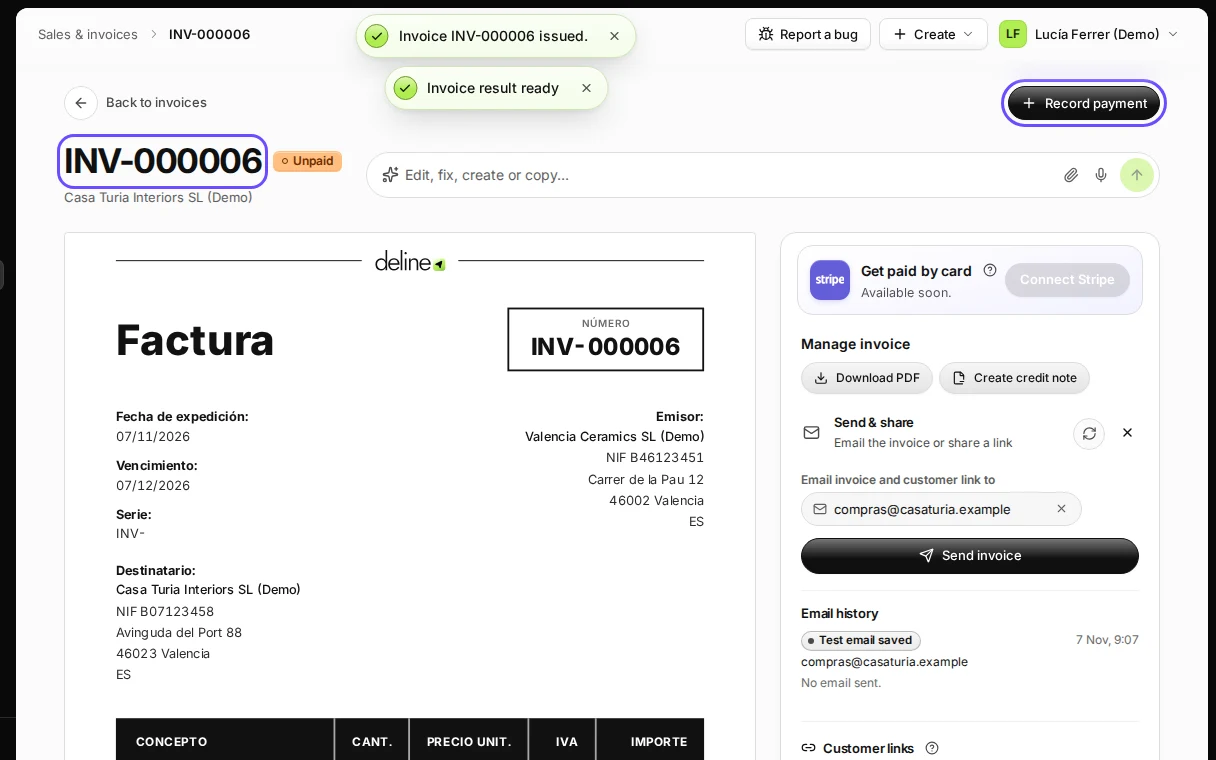
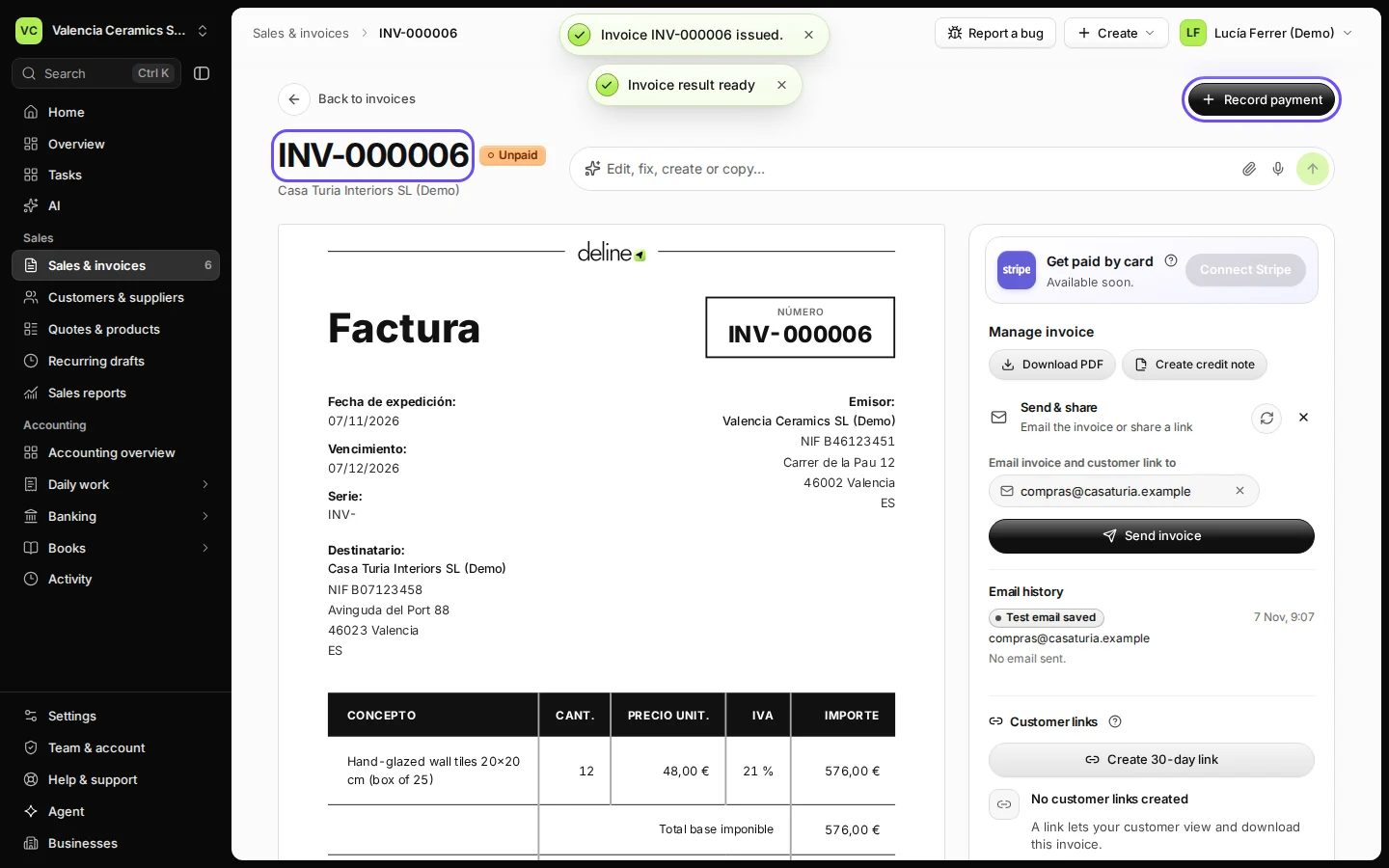
Step 5 in Deline (Spain business, fictional data) · See the whole screen Open the invoice to follow it.
You see the status (Unpaid until money arrives), the email history and the buttons to record a payment, send a reminder or create a credit note.
Step 6 in Deline (Spain business, fictional data) · See the whole screen


If something goes wrong
- "Your NIF isn't in your Spanish tax details yet": press Add your NIF, fill in the tax details in Settings and come back. Your draft is kept.
- "Nothing was issued": the draft is saved and has no number yet. Press Try again; nothing is sent twice.
- The customer says the email never arrived: open the invoice, check Email history, correct the address if needed and press Send invoice again.
- You spot a mistake after issuing: an issued invoice cannot be edited. Create a credit note and issue a new invoice.
Last checked 2026-11-07 by the guide runner on build c5fbd2fa6 (Deline 12a482996) (local Deline stack, desktop and phone).