
Steps
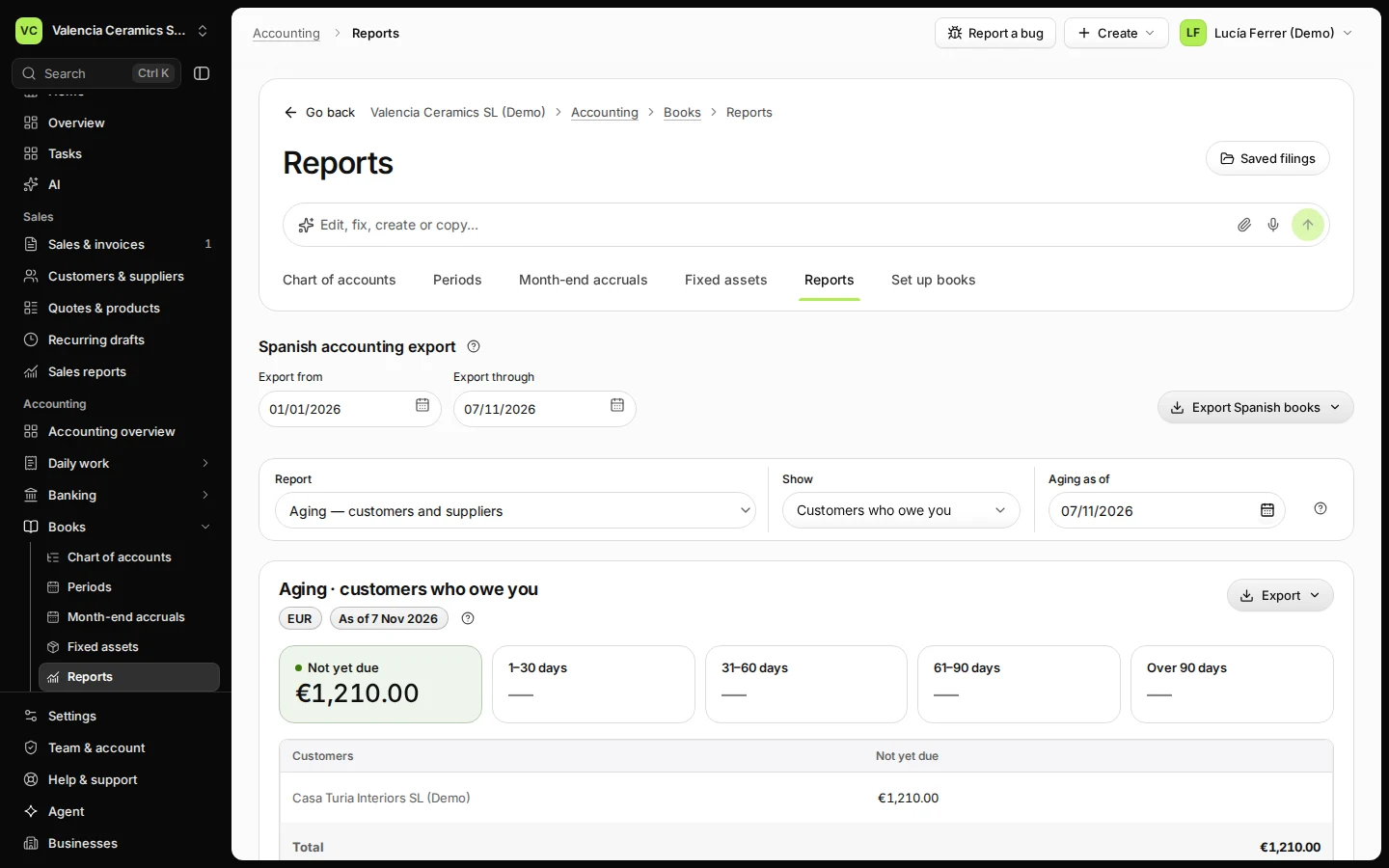
Open Reports from Books and choose Aging — customers and suppliers.
In Report, pick Aging — customers and suppliers.
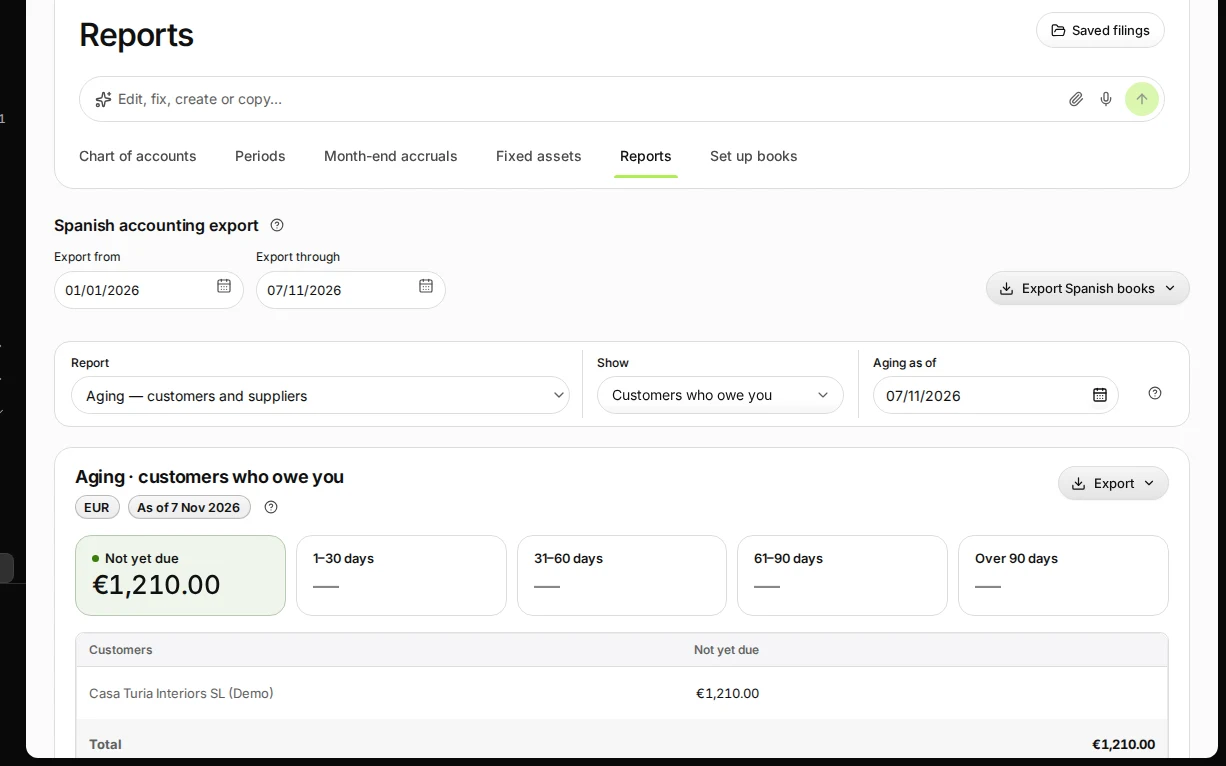
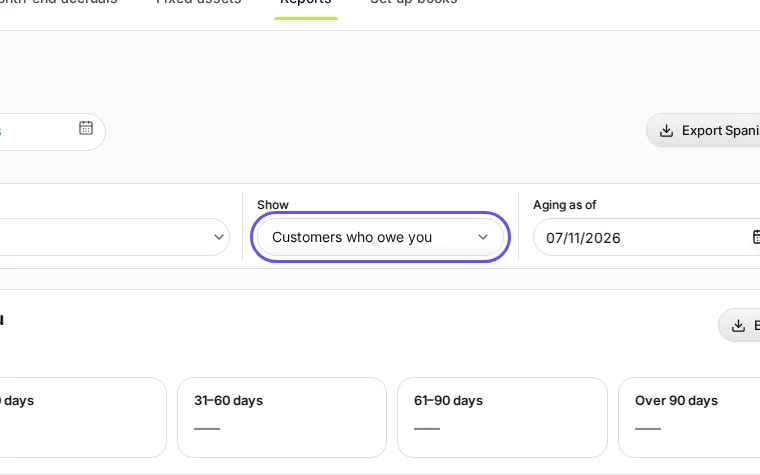
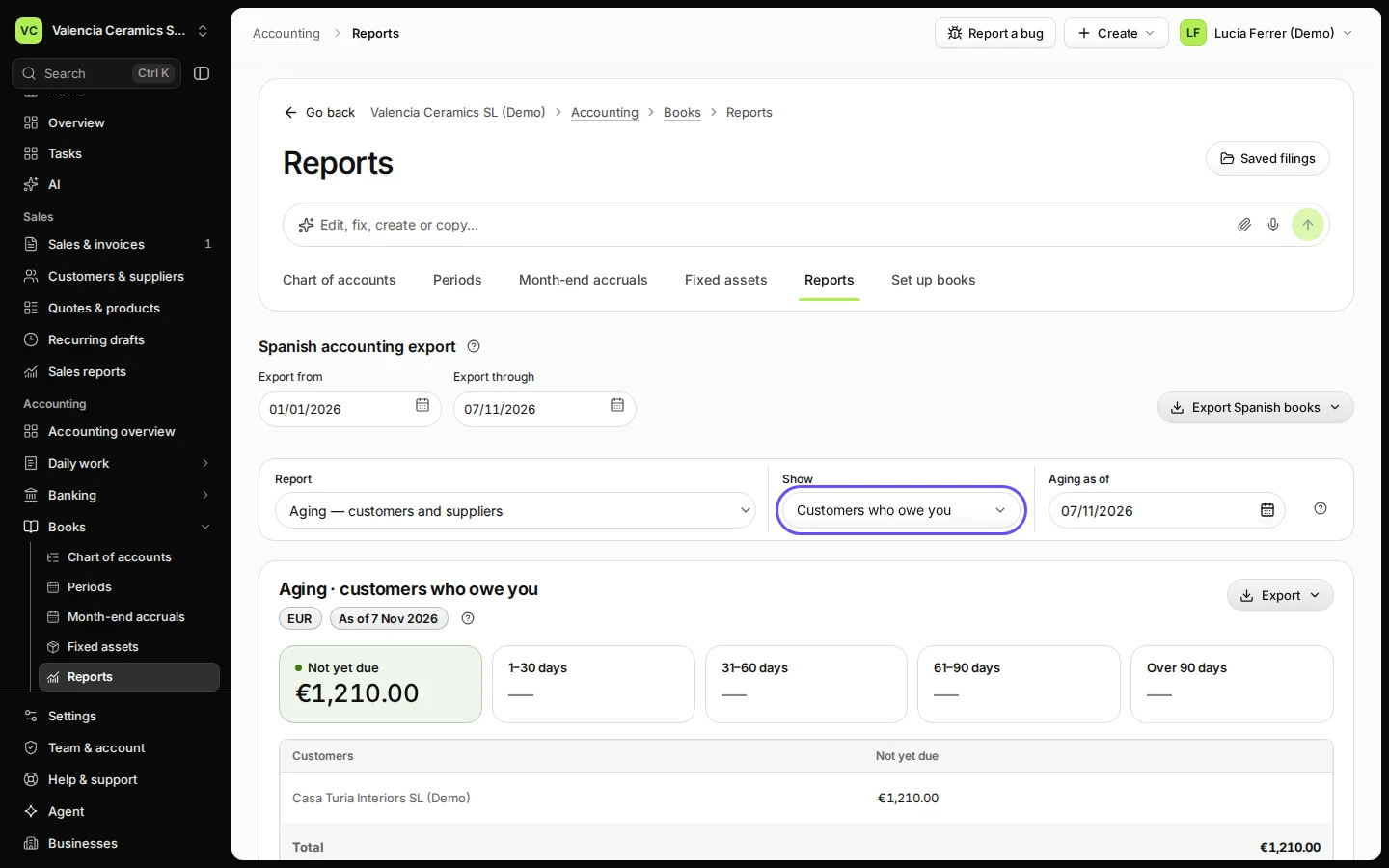
Step 1 in Deline (Spain business, fictional data) · See the whole screen Choose Customers who owe you and the date.
Aging as of is today unless you change it. Your accountant usually asks for the last day of the month or the year.
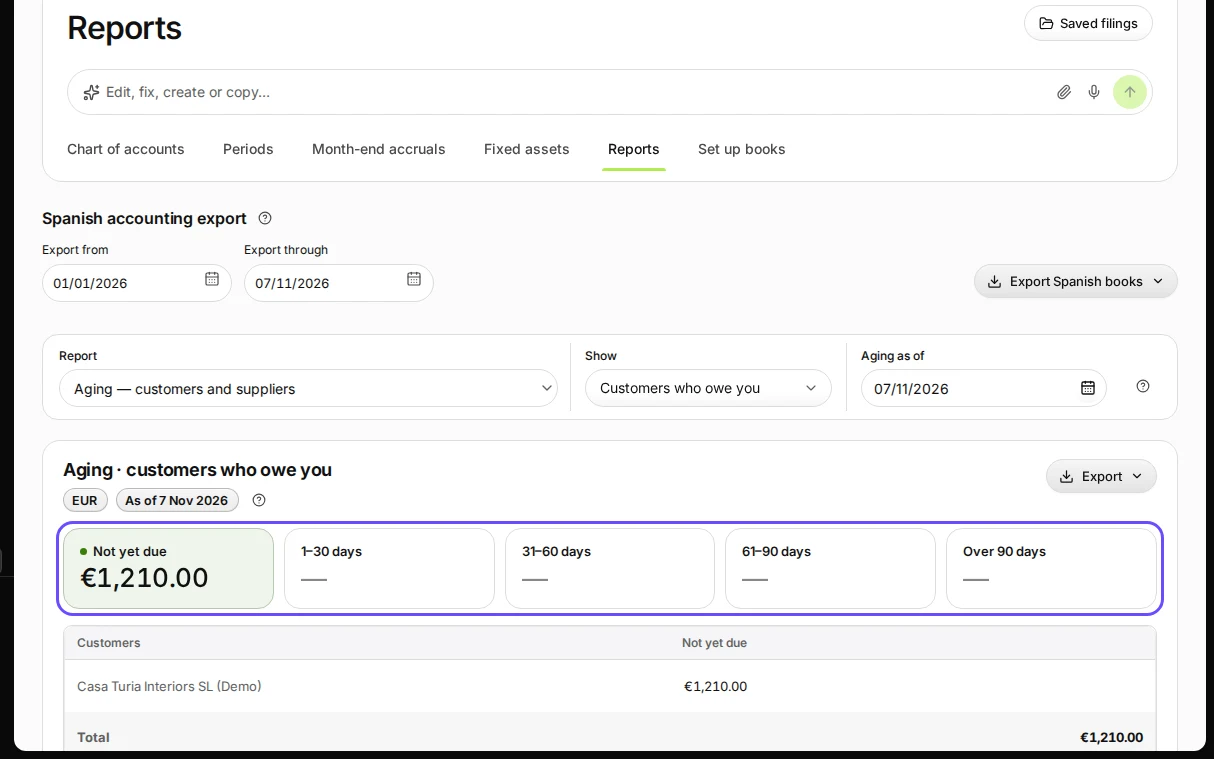
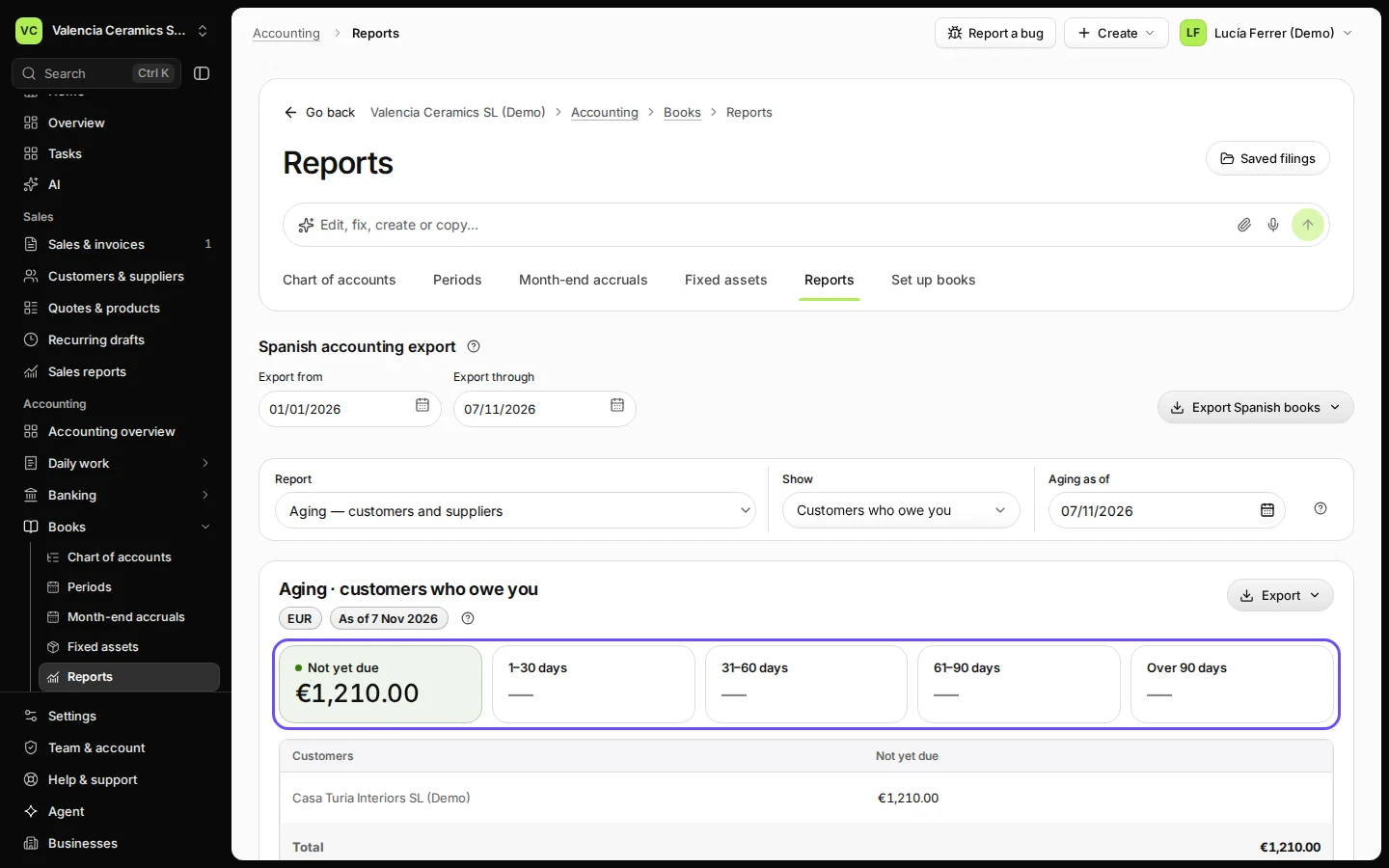
Step 2 in Deline (Spain business, fictional data) · See the whole screen Check the totals by days past due.
Each column adds up what customers owe by how late it is. The table below shows every customer who owes you.
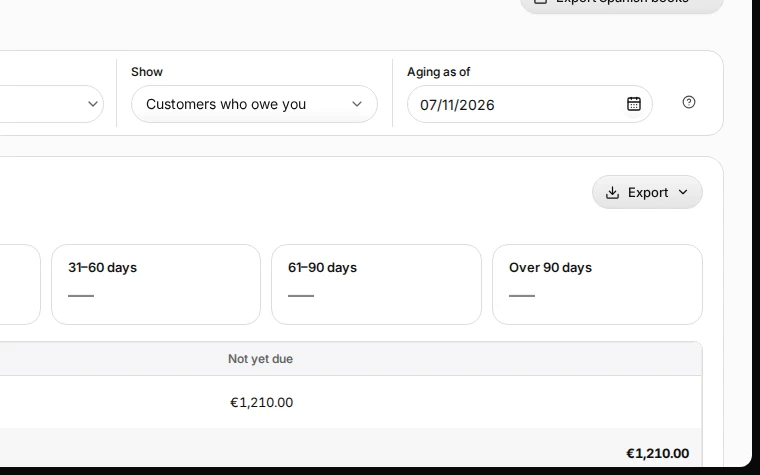
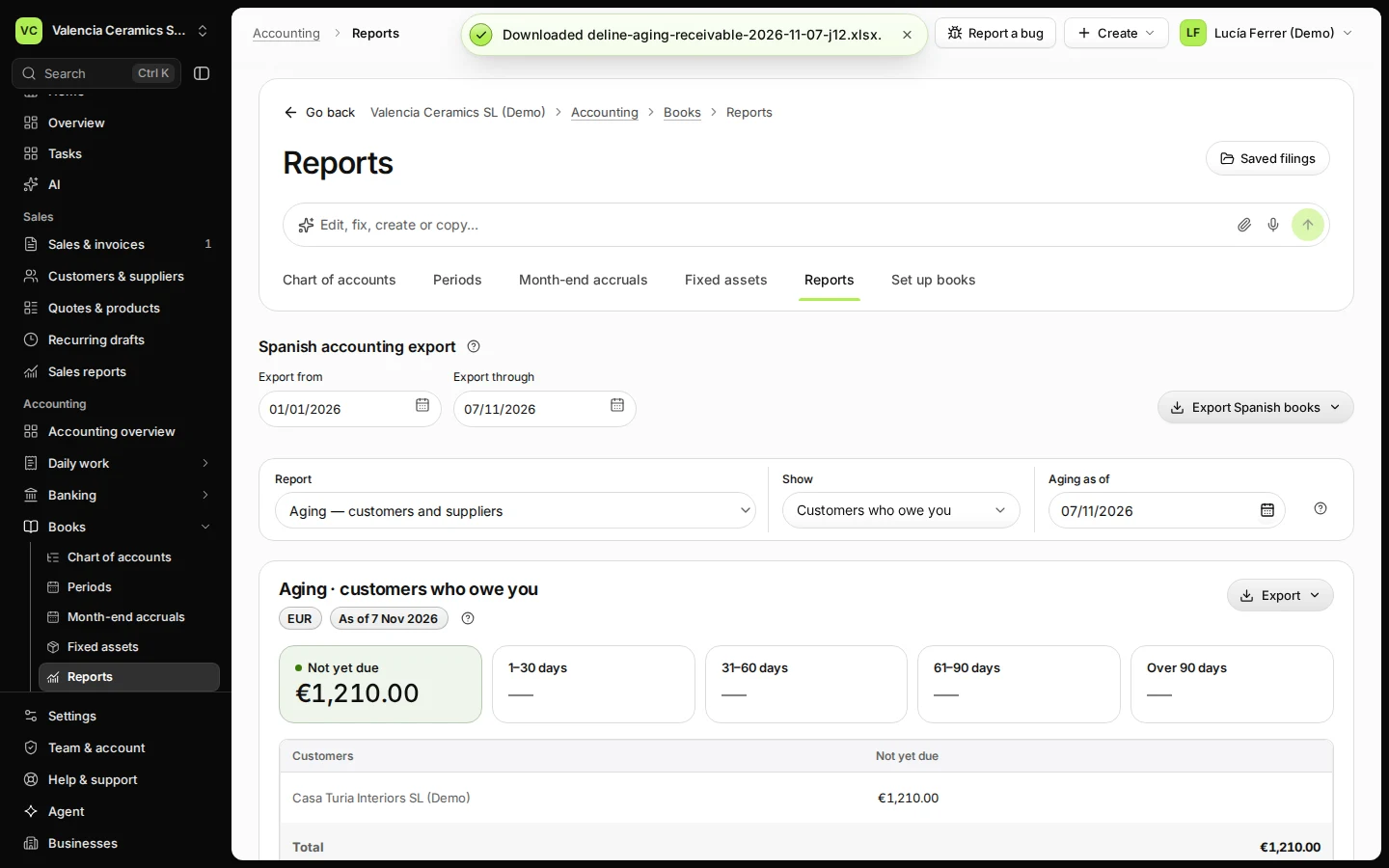
Step 3 in Deline (Spain business, fictional data) · See the whole screen Press Export and choose Download Excel.
The Excel file holds exactly what you see: the same side, date and amounts. Send it to your accountant.
Step 4 in Deline (Spain business, fictional data) · See the whole screen
If something goes wrong
- A paid invoice still shows: record the payment (see Record a payment on an invoice) or reconcile the bank line, then export again.
- You need what you owe suppliers instead: in Show, choose Suppliers you owe, then export.
Last checked 2026-11-07 by the guide runner on build c5fbd2fa6 (Deline 12a482996) (local Deline stack).