
Before you start
- Your books are set up with the ФОП chart (Accounting → Set up books).
- The invoice is issued and, if the customer paid, the payment is recorded on it.
Steps
Open Posting queue from Accounting.
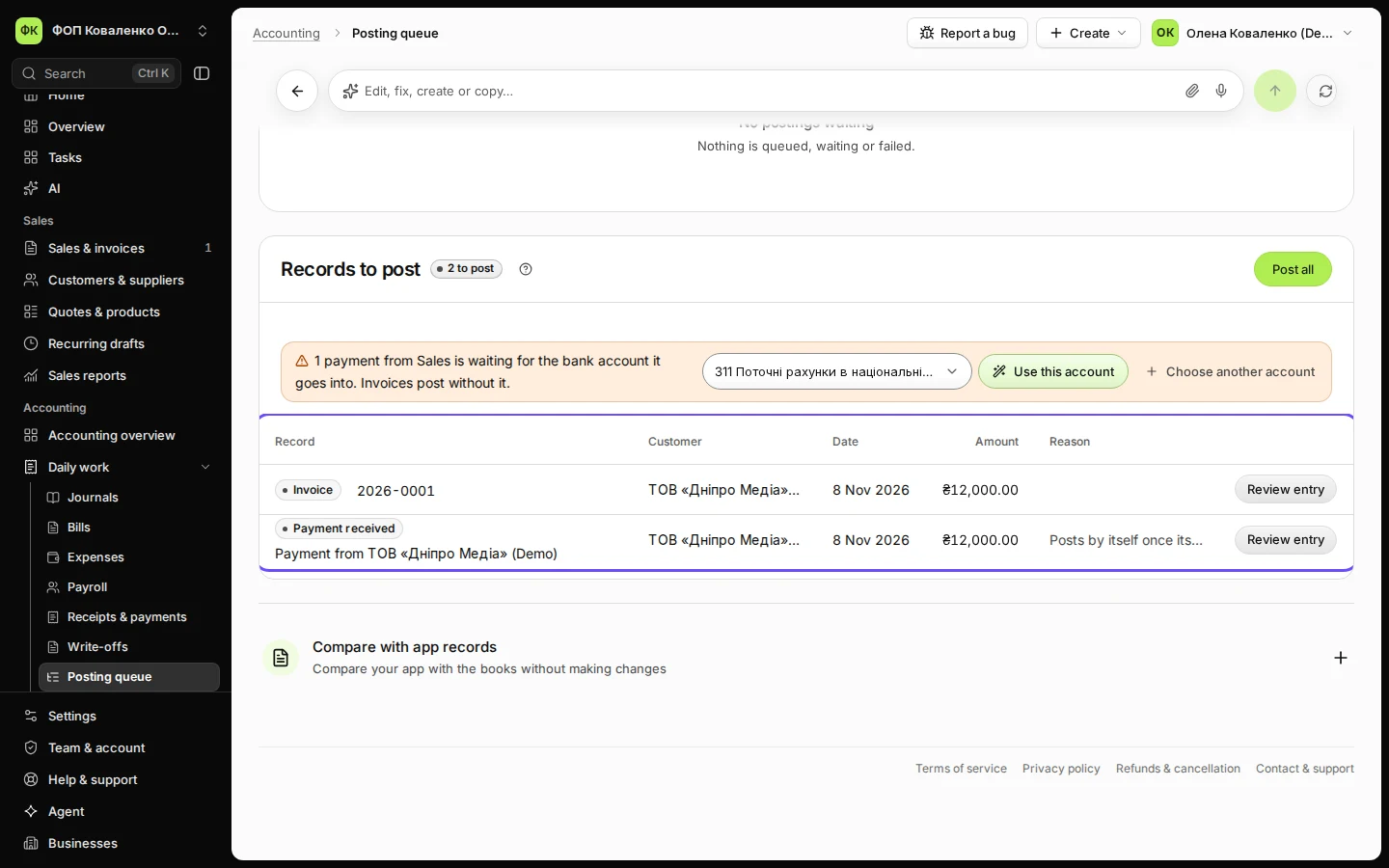
Records to post lists each invoice and payment that has not reached your books yet.
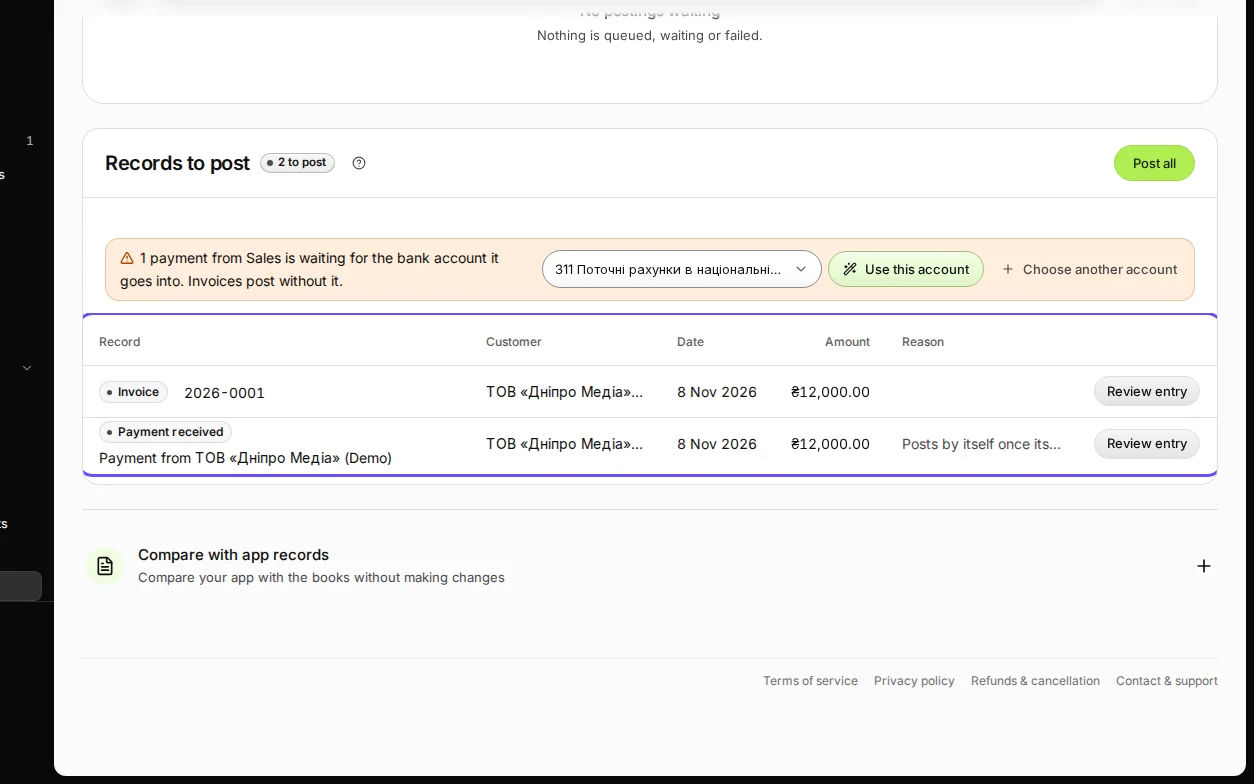
Step 1 in Deline (Ukraine business, fictional data) · See the whole screen Press Review entry on the invoice.
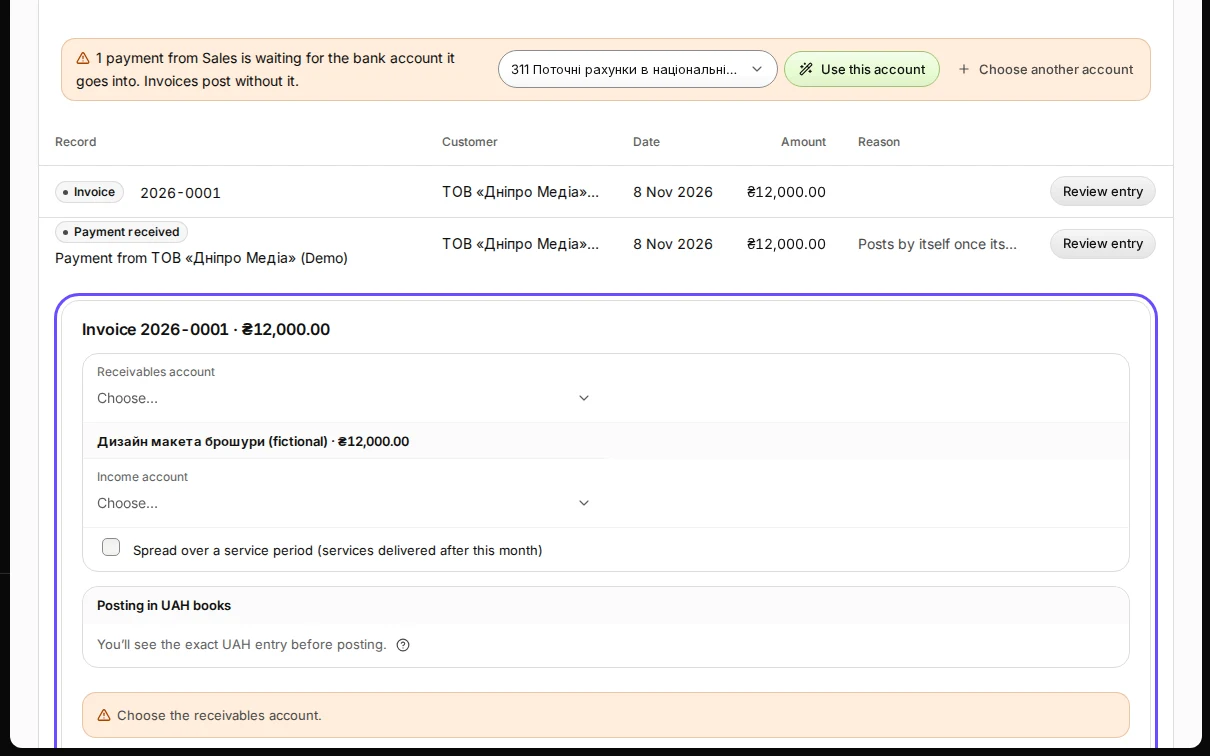
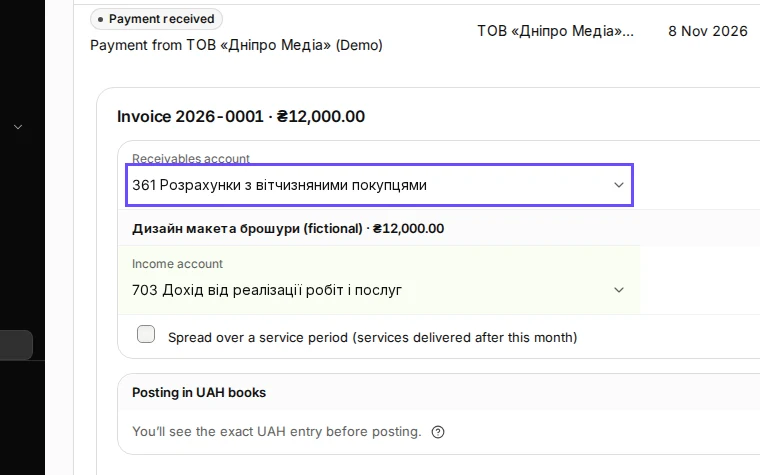
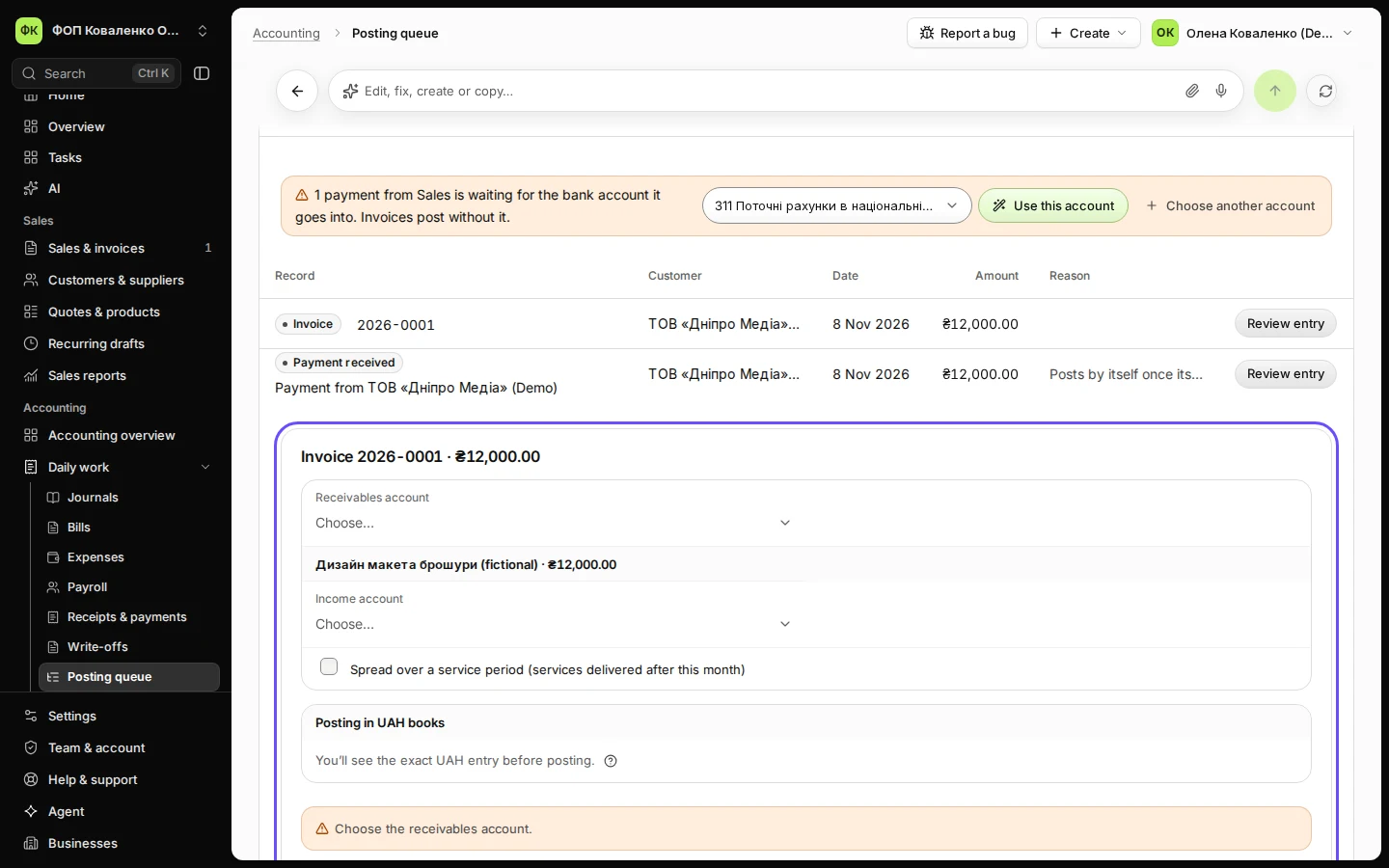
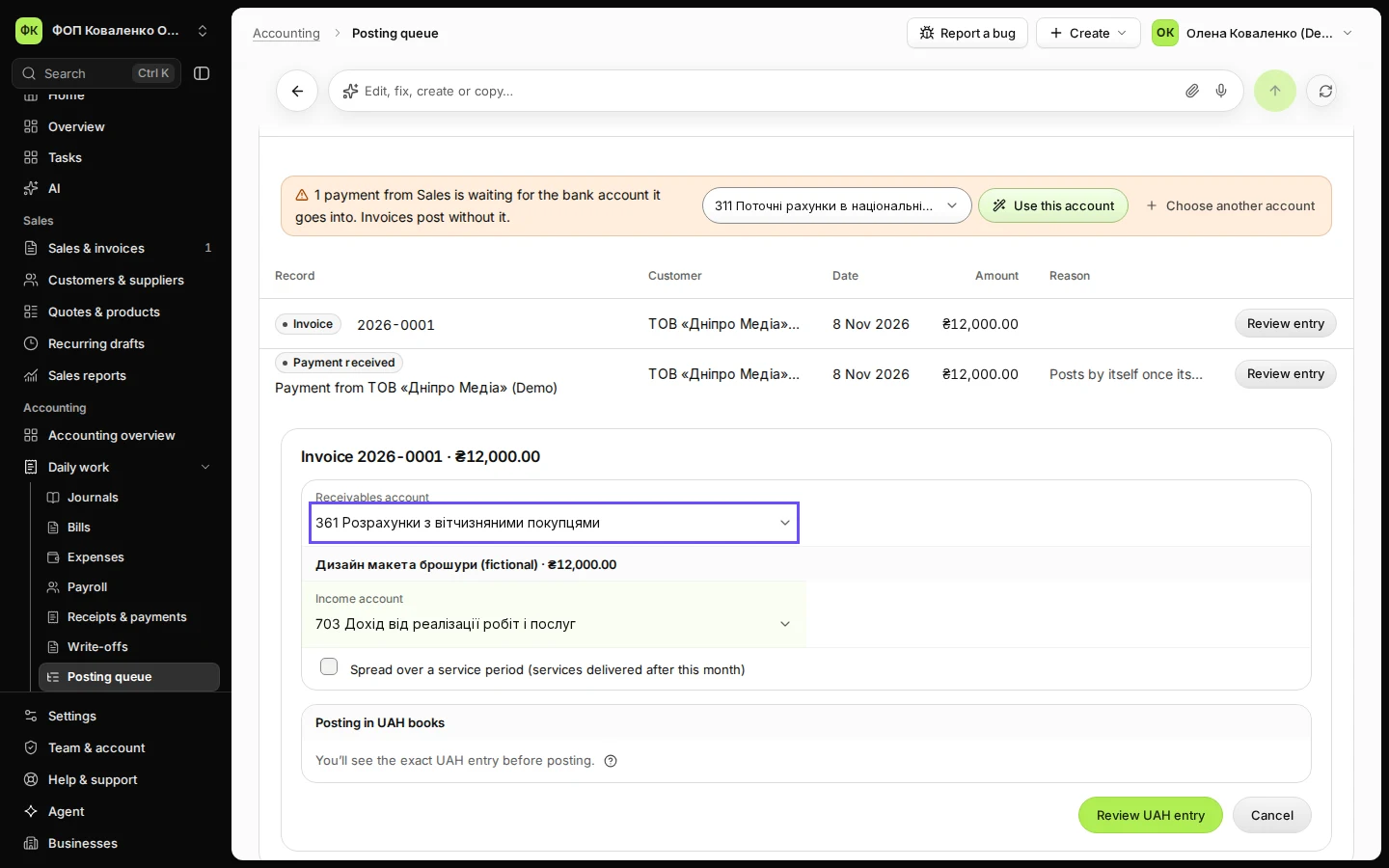
Step 2 in Deline (Ukraine business, fictional data) · See the whole screen Choose the receivables account and the income account.
361 is what Ukrainian customers owe you; 703 is income from work and services (702 for goods).
Step 3 in Deline (Ukraine business, fictional data) · See the whole screen Press Review UAH entry, check the entry and confirm.
Deline shows the exact entry (debit 361, credit 703) before you press Confirm posting.
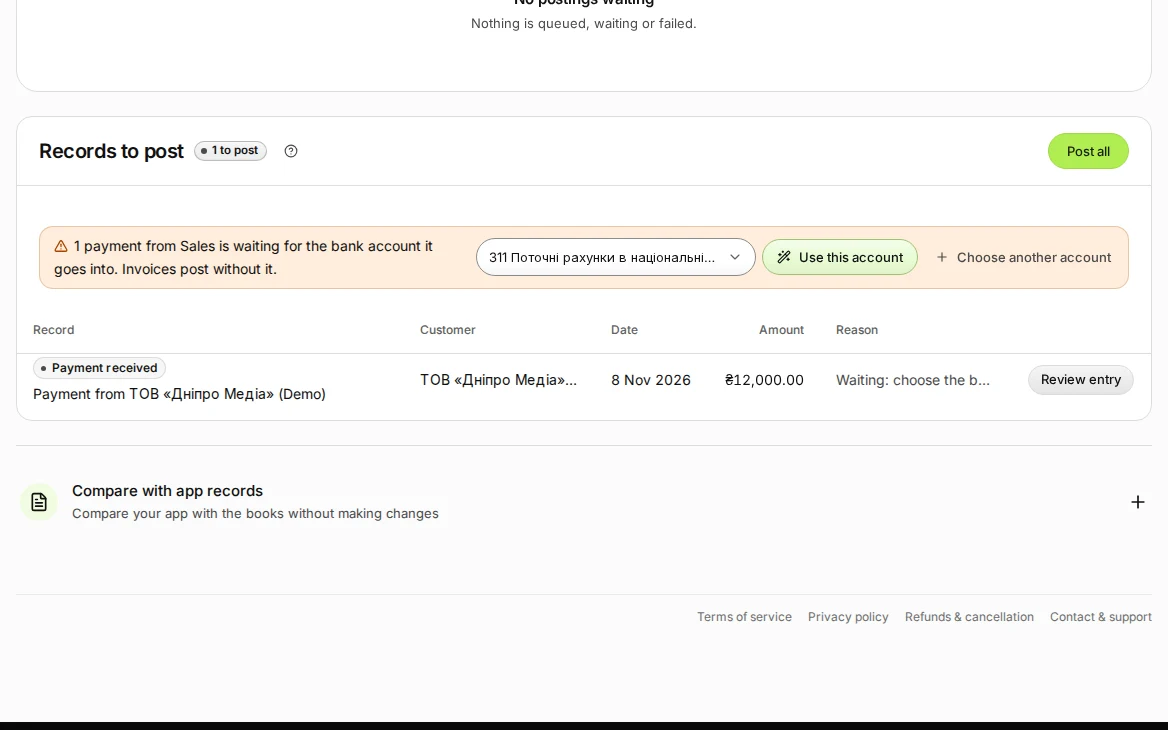
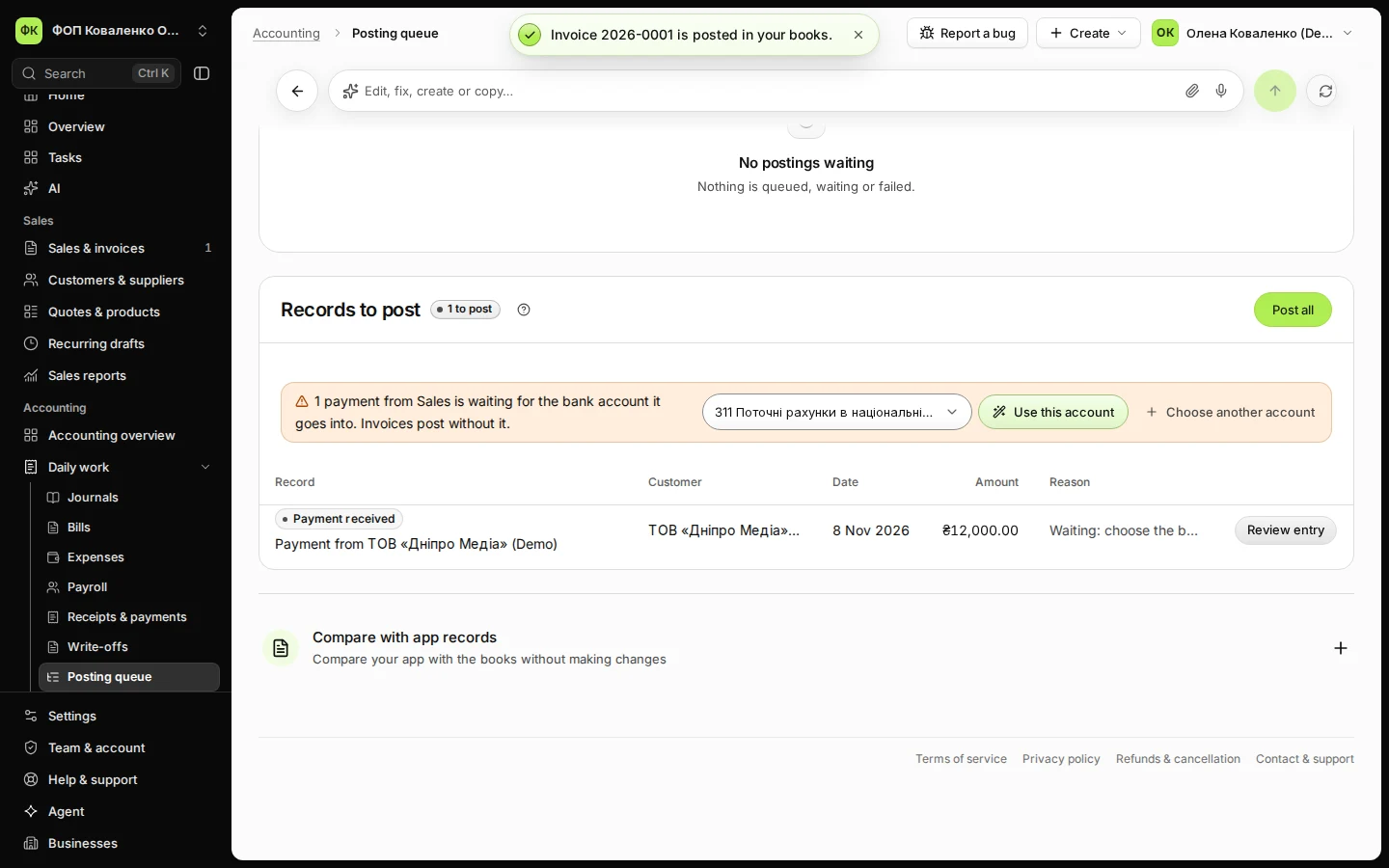
Step 4 in Deline (Ukraine business, fictional data) · See the whole screen Post the payment into your bank account.
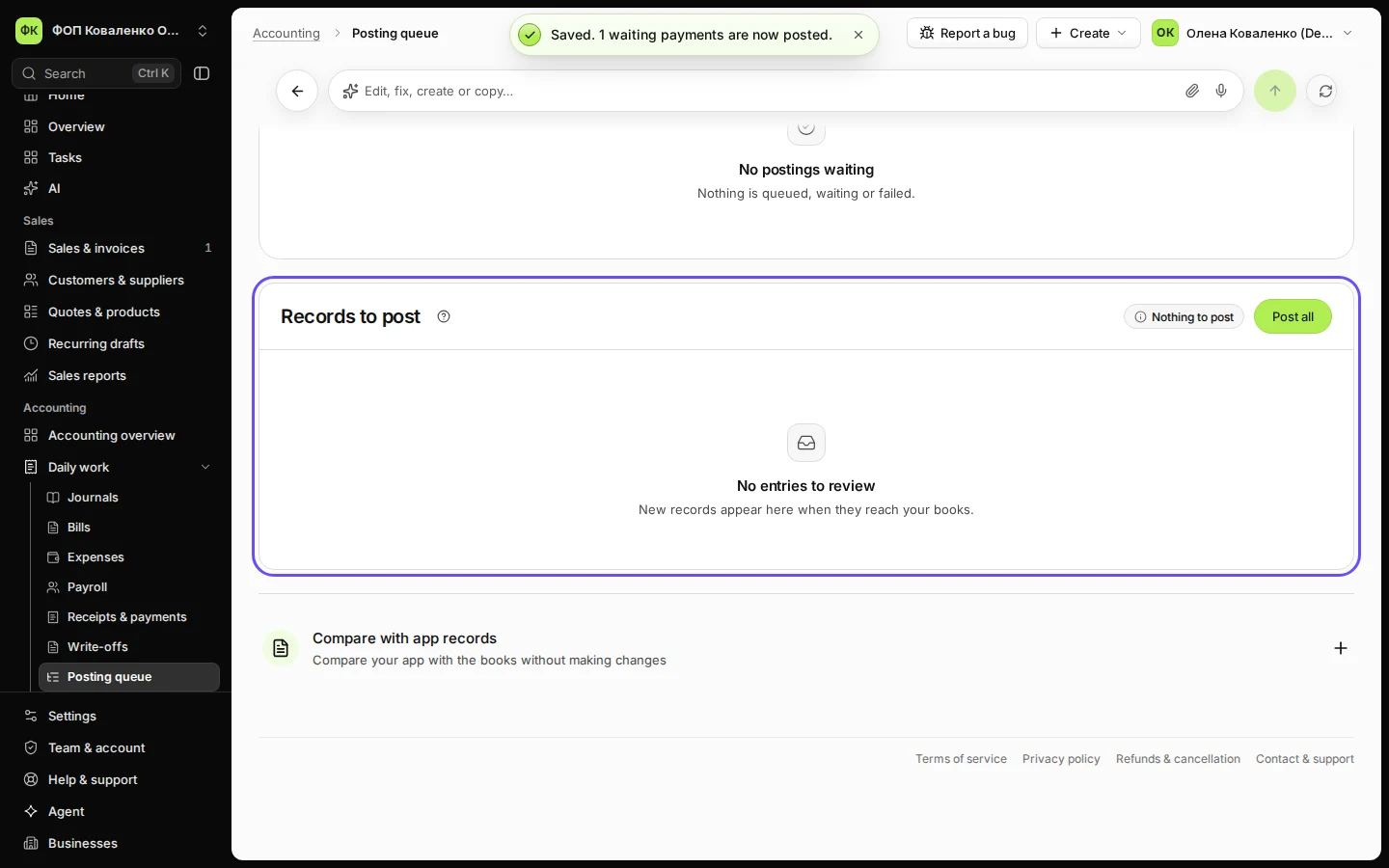
Deline suggests 311 for money received in hryvnia; press Use this account. Later payments go there by themselves.
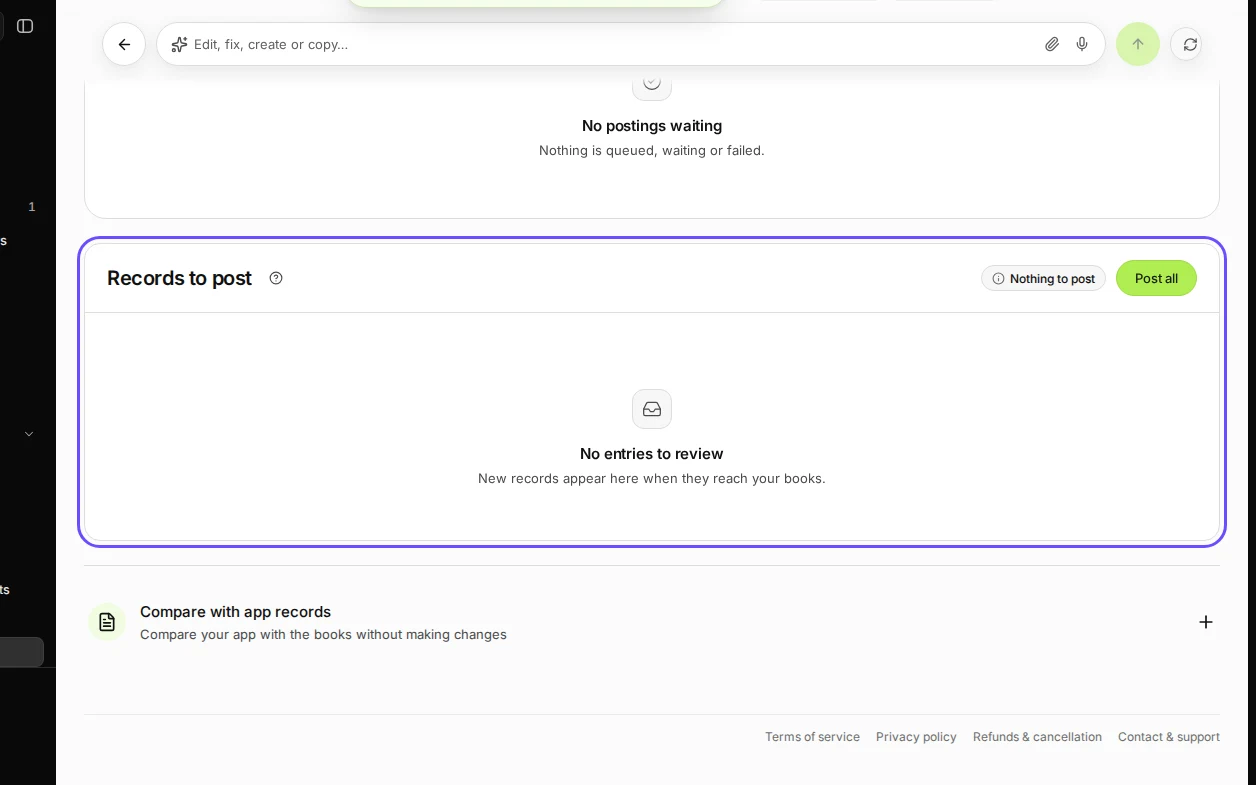
Step 5 in Deline (Ukraine business, fictional data) · See the whole screen


If something goes wrong
- "Saved accounts missing": the record needs its accounts; press Review this record and choose them.
- "Waiting: choose the bank account payments go to": choose the account under Payments from Sales, then press Save and post waiting payments.
- A posted entry is wrong: reverse it in Journals and post the right one; posted entries are never edited in place.
Last checked 2026-11-08 by the guide runner on build eba146497 (Deline cf723fe1f) (local Deline stack, desktop and phone).